
How can we help?
Cancel and Reactivate Account
- When the user chooses to cancel their account, the system presents two cancellation options to proceed. The user must select one option before continuing with the cancellation process.
- The available options include “Cancel Immediately” and “Continue Until Subscription Ends”, allowing flexibility based on the user’s preference.
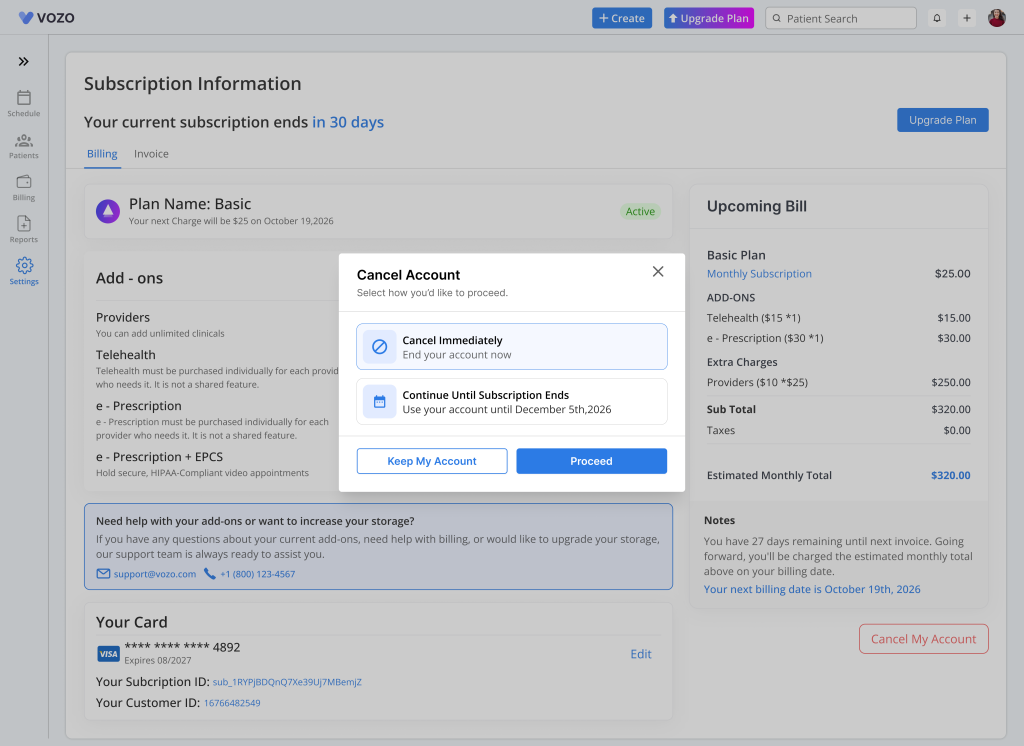
Cancellation Options
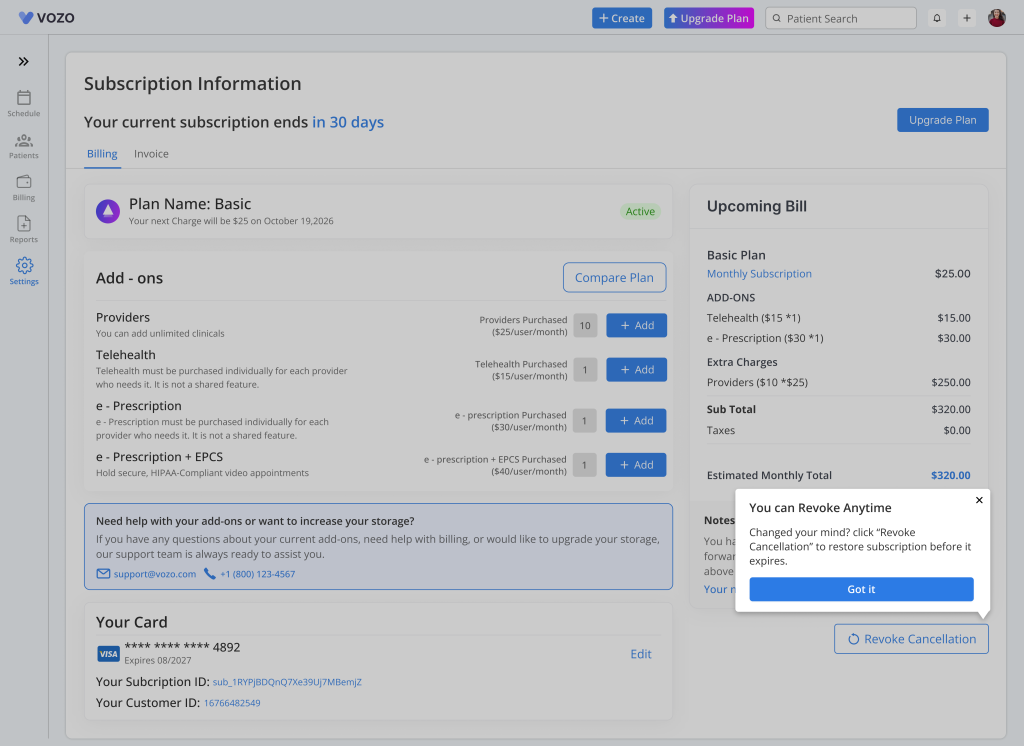
- If the user selects “Continue Until Subscription Ends”, the account remains active until the current subscription period reaches its end date. The system marks the account as scheduled for cancellation while allowing continued access during the active period.
- After confirmation, the interface updates to clearly indicate the scheduled cancellation. The background changes to black, a message is displayed to inform the user, and a “Revoke Cancellation” button becomes available.
Revoke Cancellation
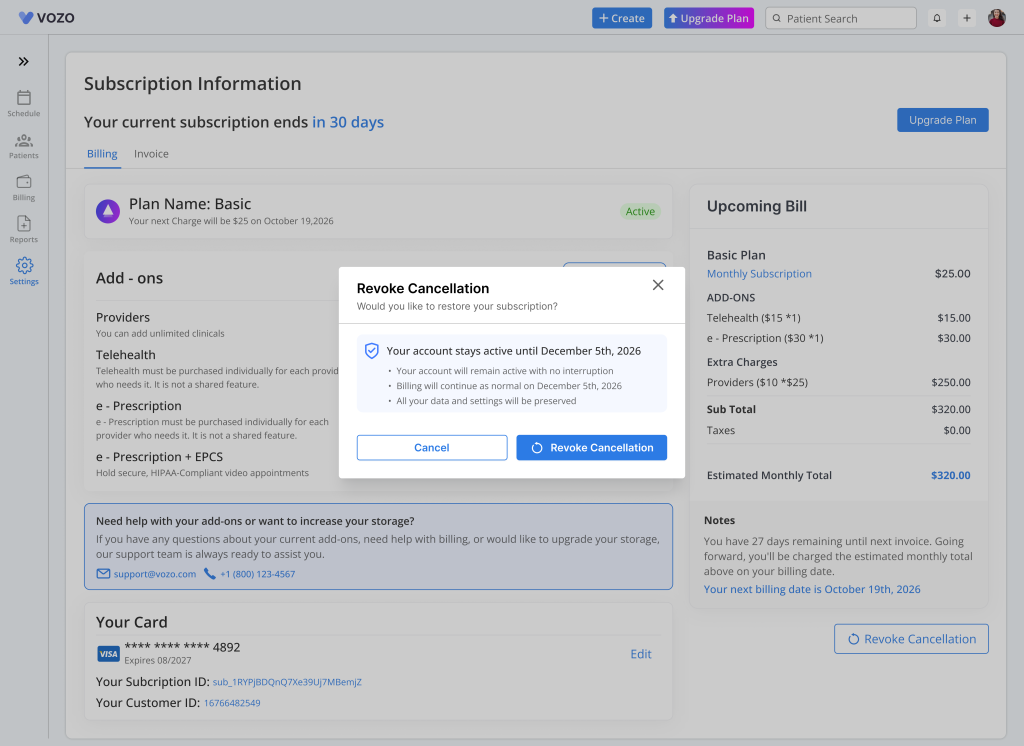
- The “Revoke Cancellation” option allows the user to reverse the scheduled cancellation at any time before the subscription ends. This ensures flexibility in case the user decides to continue using the service.
- Once confirmed, the system removes the scheduled cancellation and restores the account to its normal active status without any data loss.
Cancel Immediately
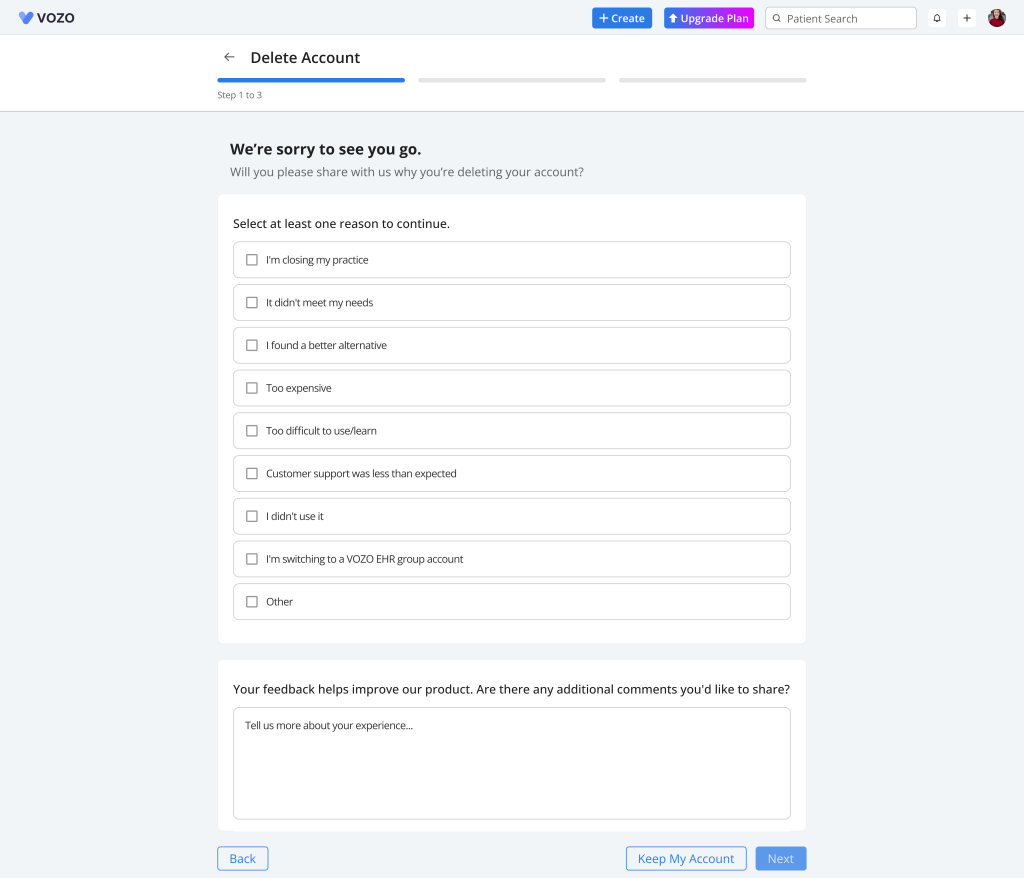
- If the user selects “Cancel Immediately”, the system initiates the account deletion process right away. This action leads to immediate termination of access and begins the permanent removal process.
- The cancellation flow includes an updated user interface, improved alert messages, and clearer content to guide the user through the process.
Reactivate Account
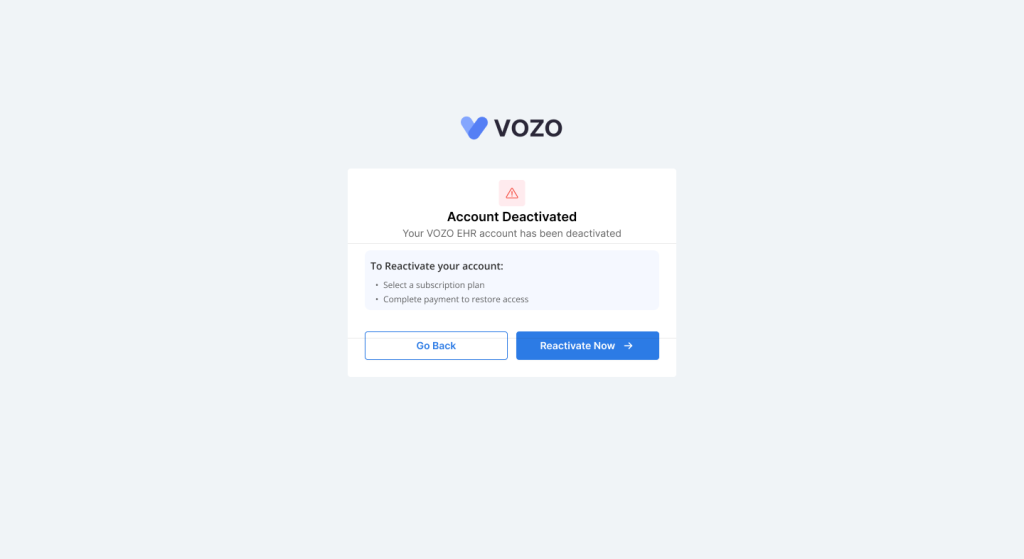
- If the account has been deleted, the user still has an option to reactivate it by logging back into the system. This provides a recovery path even after cancellation.
- Upon login, a popup message is displayed prompting the user to “Reactivate Now”. Once selected, the user is redirected to the subscription page to continue the standard subscription process.
Renew Subscription & Data Export

- If the user does not revoke the cancellation and the account becomes inactive, additional options are presented during login to either renew the subscription or export data.
- The system displays two options: “Renew Subscription” and “Data Export”, allowing the user to either regain access or retrieve their information.
Renew Subscription
- When the user selects “Renew Subscription”, they are redirected to the subscription page where the normal subscription process continues.
Data Export
- If the user selects “Data Export”, a dedicated data export page is displayed, allowing the user to securely download their account data.
- From the data export page, clicking “Start Cancellation” redirects the user to the Immediate Delete process to complete account deletion.