
How can we help?
Dedicated Dashboard
- The Dedicated Dashboard provides a centralized overview of daily activities, appointments, patient interactions, pending tasks, billing updates, and clinical workflows for the logged-in provider.
- The dashboard is designed using multiple summary cards that help providers quickly access important information and navigate directly to related modules.
Accessing the Dashboard
- To open the dashboard, click on the “Dashboard” menu available above the Schedule module in the main navigation.
- Once opened, the dashboard displays multiple cards containing summarized information from different areas of the system.
- Each dashboard card includes a “View All” option that redirects the user to the complete detailed page related to that section.
- The dashboard is divided into multiple sections to help providers monitor appointments, patient activities, unsigned notes, billing information, and portal activities from a single screen.
- Each card displays a quick summary along with important details and action shortcuts for faster workflow management.
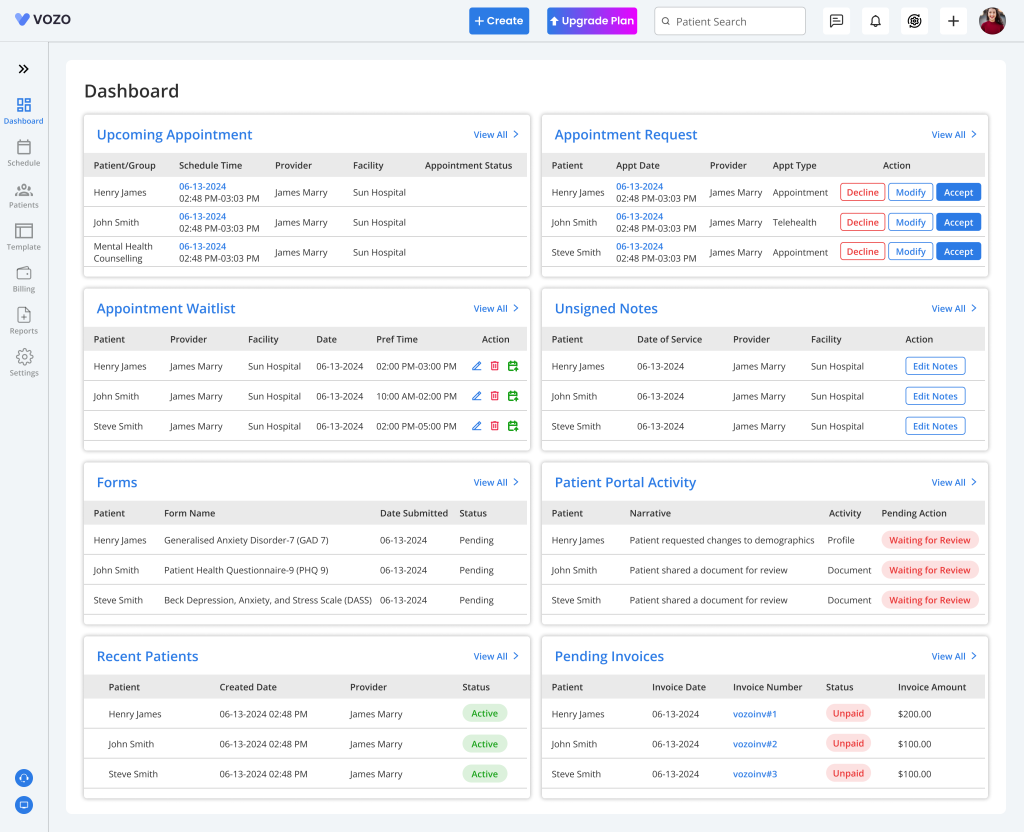
Dashboard Segments
Upcoming Appointments
- The Upcoming Appointments section displays all upcoming appointments assigned to the logged-in provider.
- Both individual appointments and group appointments are included within this section.
- Appointment details displayed include:
- Patient or Group Name
- Scheduled Time
- Provider
- Facility
- Appointment Status
- Click “View All” to open the complete appointment schedule inside the Schedule module.
Appointment Requests
- The Appointment Requests section displays appointment requests submitted by patients through the system or patient portal.
- Each request includes:
- Patient Name
- Appointment Date & Time
- Provider
- Appointment Type
- Available Actions
- Providers can directly perform the following actions:
- Accept
- Modify
- Decline
- Clicking “View All” opens the Appointment Request popup where providers can manage all pending requests.
- Selecting any action from the dashboard follows the same workflow available inside the popup window.
Appointment Waitlist
- The Appointment Waitlist section displays patients who have requested to be added to the appointment waitlist.
- The section displays:
- Patient Name
- Provider
- Facility
- Requested Date
- Preferred Time
- Action Options
- Clicking “View All” redirects the user to the complete Appointment Waitlist management page.
Unsigned Notes
- The Unsigned Notes section helps providers identify clinical notes that are created but not yet signed.
- The section displays:
- Patient Name
- Date of Service
- Provider
- Facility
- Action
- Click “View All” to open the Note Taking page and complete the note signing workflow.
Forms
- The Forms section displays forms shared with patients including:
- Assessments
- Consent Forms
- Intake Forms
- Clinical Documents
- Each form entry displays:
- Patient Name
- Form Name
- Date Submitted
- Status
- Clicking “View All” opens the complete Forms management page.
Patient Portal Activity
- The Patient Portal Activity section displays activities performed by patients through the Patient Portal.
- The section includes:
- Patient Name
- Narrative
- Activity
- Pending Action
- Clicking “View All” redirects users to:
- Settings
- Patient Portal
- Patient Activities Tab
- This section helps providers monitor patient engagement and pending portal-related actions.
Recent Patients
- The Recent Patients section displays recently added patient records in the system.
- Each entry includes:
- Patient Name
- Created Date
- Provider
- Status
- Clicking “View All” redirects users to the Patient List page inside the Patient module.
Pending Invoices
- The Pending Invoices section displays unpaid or partially paid invoices that require attention.
- Invoice details displayed include:
- Patient Name
- Invoice Time
- Invoice Number
- Status
- Invoice Amount
- Clicking “View All” redirects users to:
- Reports
- Invoices
- This section helps providers and billing staff quickly identify outstanding balances and pending patient payments.
Dashboard Navigation Benefits
- The Dedicated Dashboard provides a centralized workflow management experience by combining appointment management, patient communication, clinical documentation, forms, billing, and notifications into a single interface.
- Providers can quickly monitor daily activities, identify pending actions, and navigate directly to detailed workflows using the available dashboard shortcuts and “View All” options.