How can we help?
Online Schedule Settings
Configure Provider Availability and Allow Patients to Book Appointments Online
The Online Schedule Settings feature allows providers to set their appointment availability and share booking links with patients for online appointment scheduling.
This helps patients book appointments directly based on provider availability.
Access Online Schedule Settings
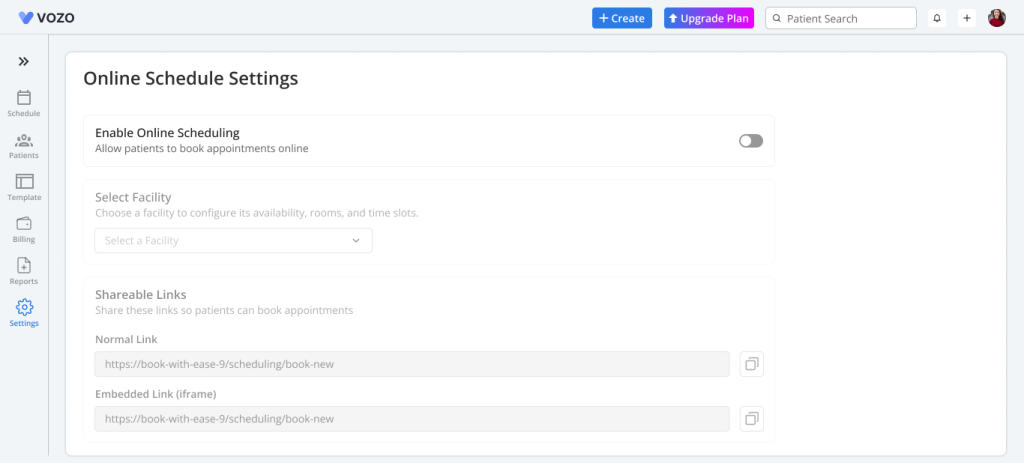
- Open Settings
- Click Scheduling
- Select Online Schedule Settings
- The Online Schedule Settings page will open.
Enable Online Scheduling
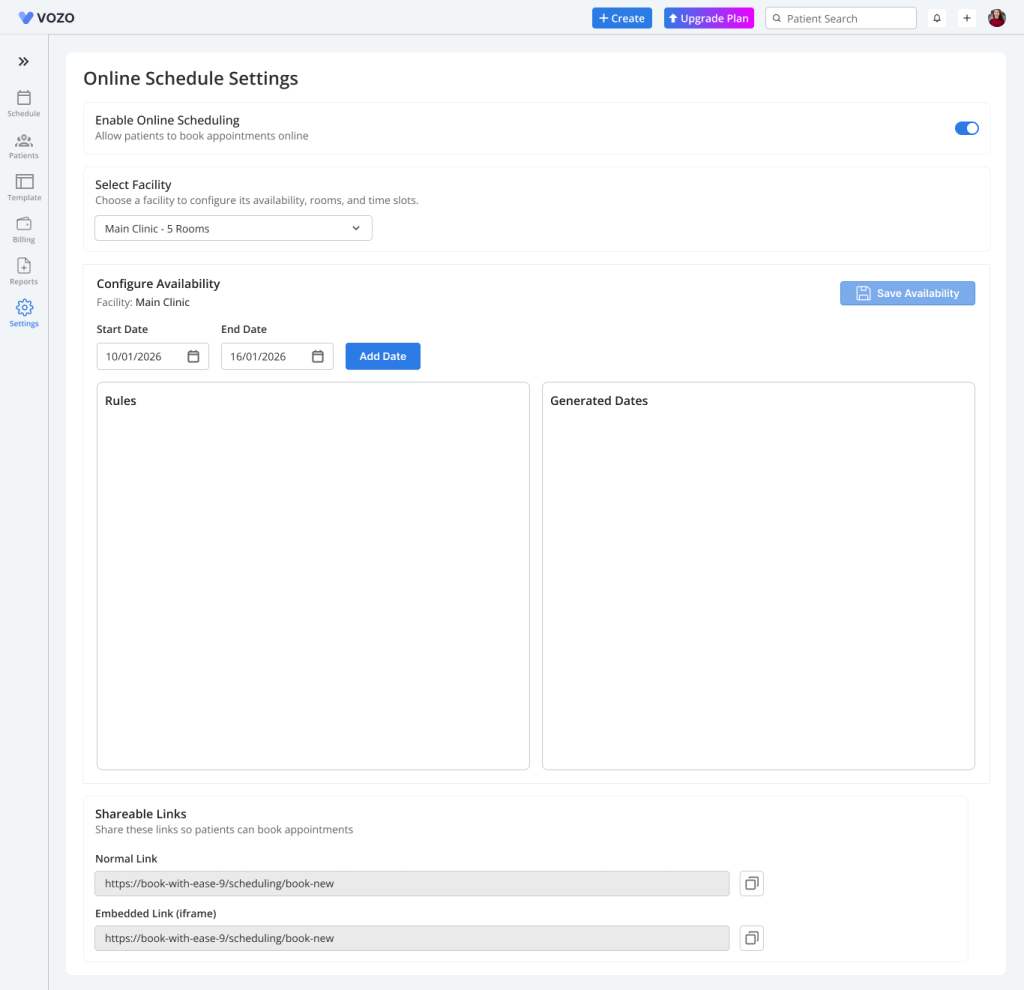
- At the top of the page, the system shows: Enable / Disable Toggle
- When enabled:
- Online scheduling becomes available
- Shareable links are generated
- Patients can book appointments online
- When disabled:
- Online booking is turned off
- Patients cannot access scheduling links
Provider & Facility Selection
- Before using online scheduling:
- The provider must configure availability.
- If the provider is linked with only one facility, the facility is selected automatically
- If the provider is linked with more than one facility:
- A dropdown is displayed
- Select the required facility
- Availability is saved separately for each facility.
Configure Availability Dates
- Choose the availability date range.
- Choose the beginning date.
- Choose the ending date.
- Click Add Date
- After clicking:
- Selected date range is added
- A Rules section is created
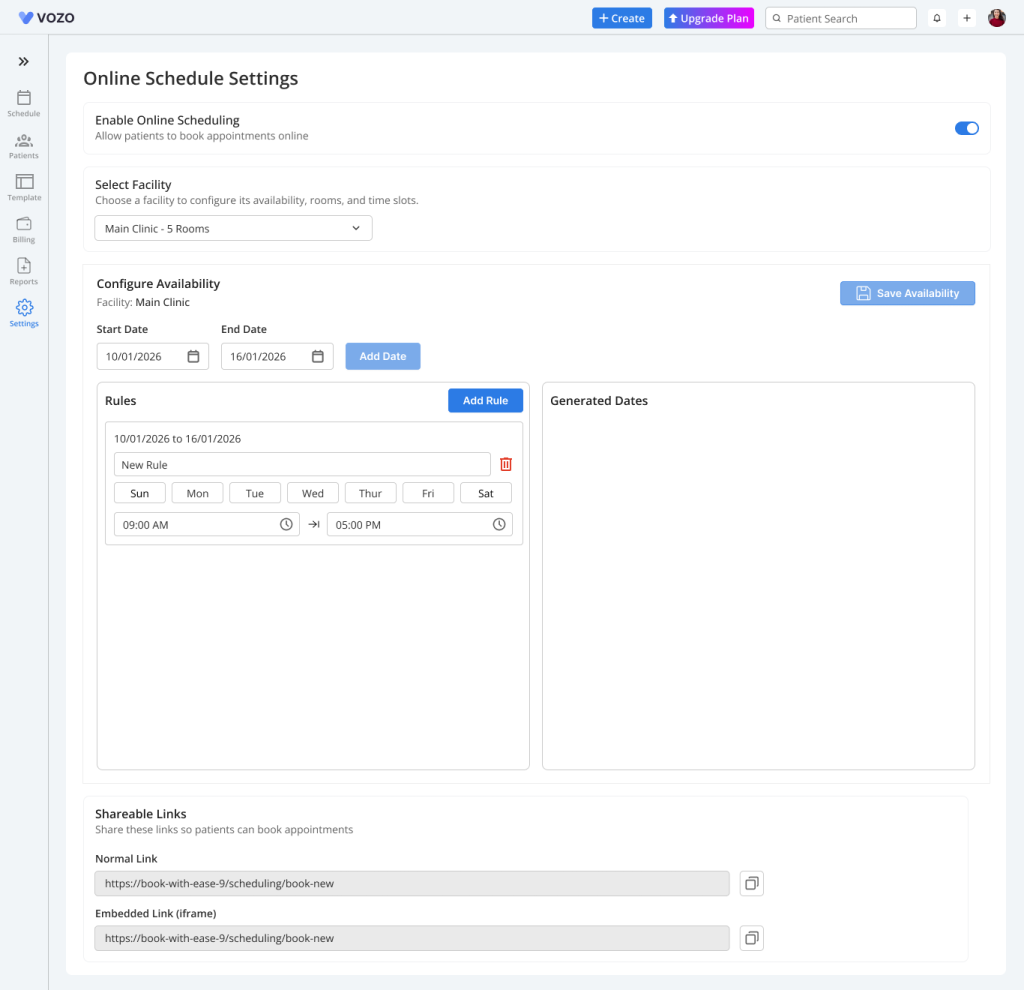
Generated Dates
- The right side of the page shows:
- Users can:
- View created dates
- Edit a specific date
- Update time slots for one date
- After completing rules:
- Review availability
- Click Save
- Result:
- All availability settings are saved
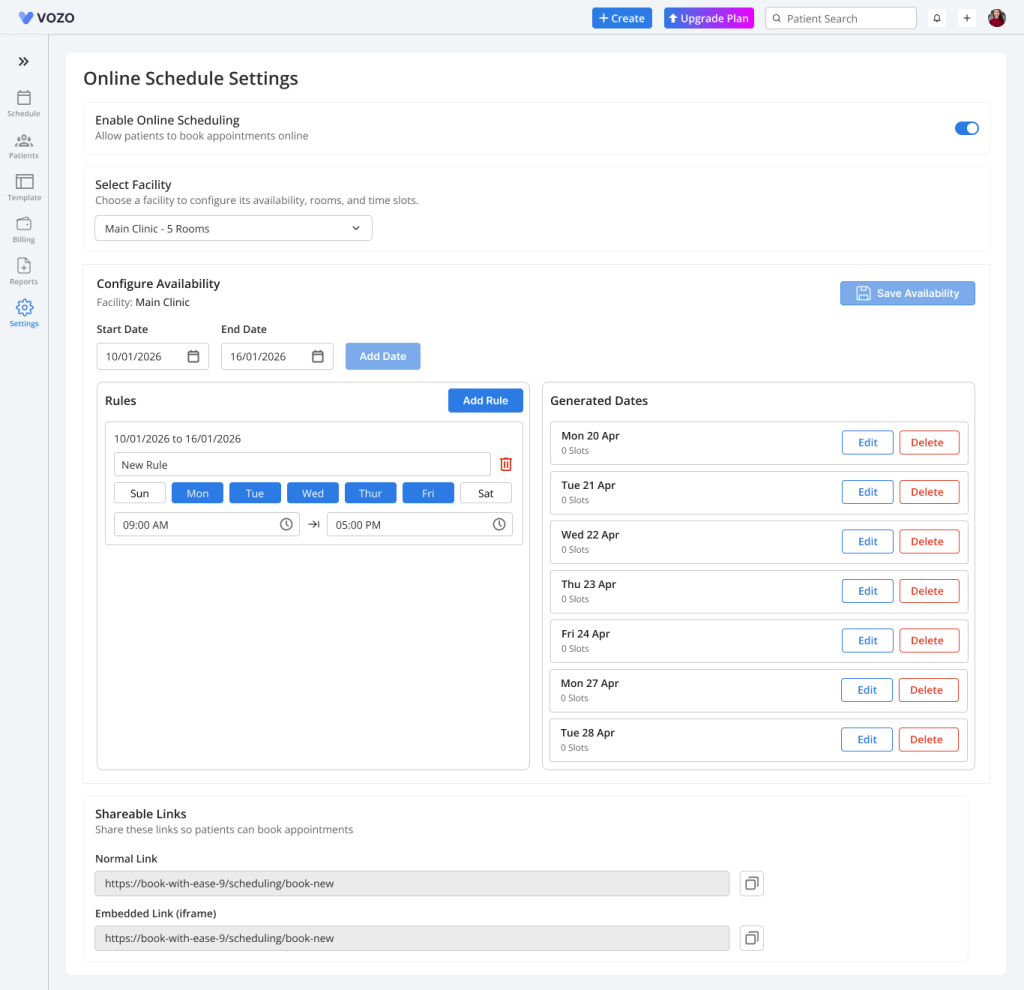
Shareable Appointment Links
- After saving, two links are generated.
- Used to open the booking page directly.
- Used inside websites or portals.
Patient Appointment Booking
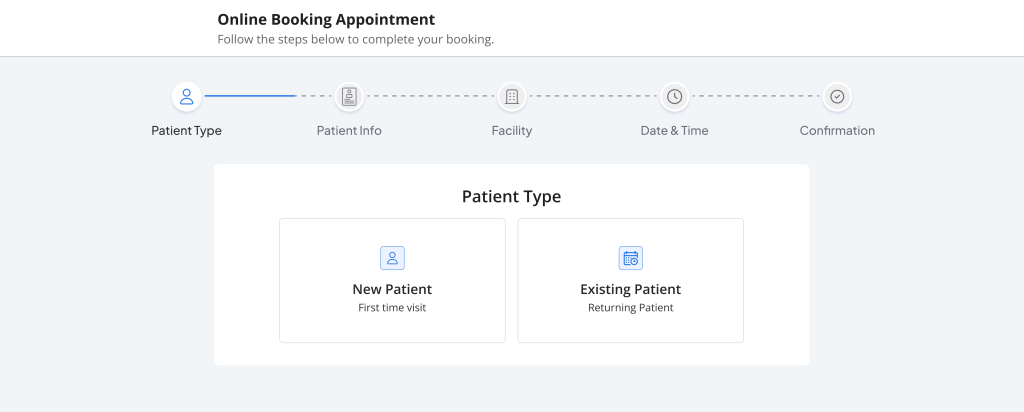
- Patients can use the shared link to book online.
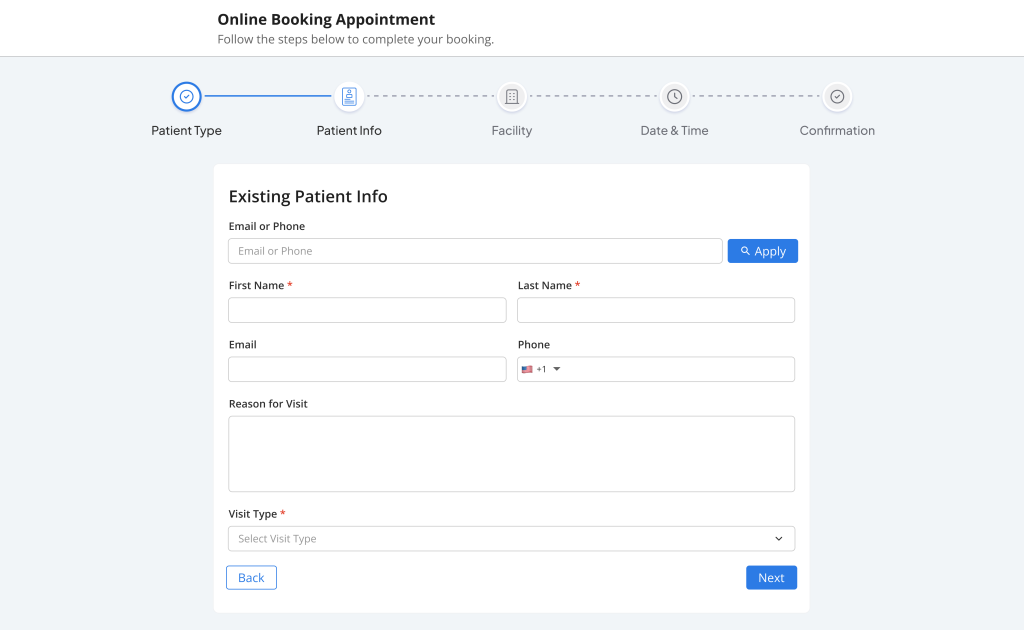
- When opening the link, two options are shown:
- New Patient
- Existing Patient
New Patient Booking
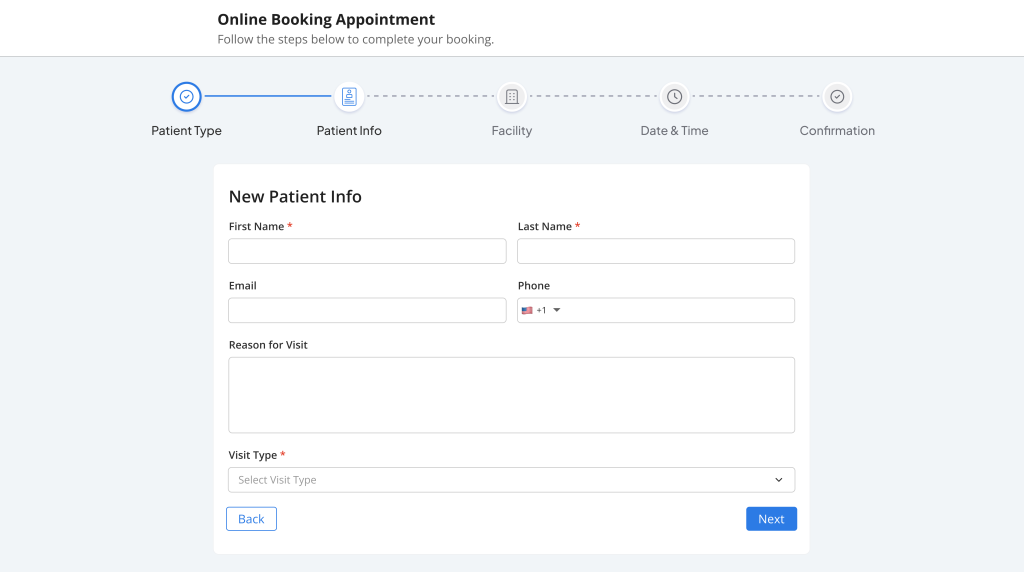
- Select New Patient
- Enter patient details.
- Example:
- First Name
- Last Name
- Phone
- Click Next and select the facility.
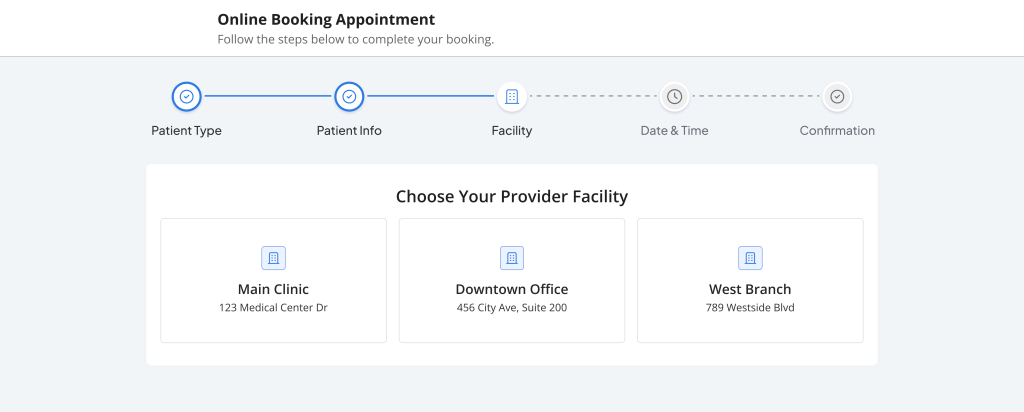
- Select:
- Available date
- Available time slot
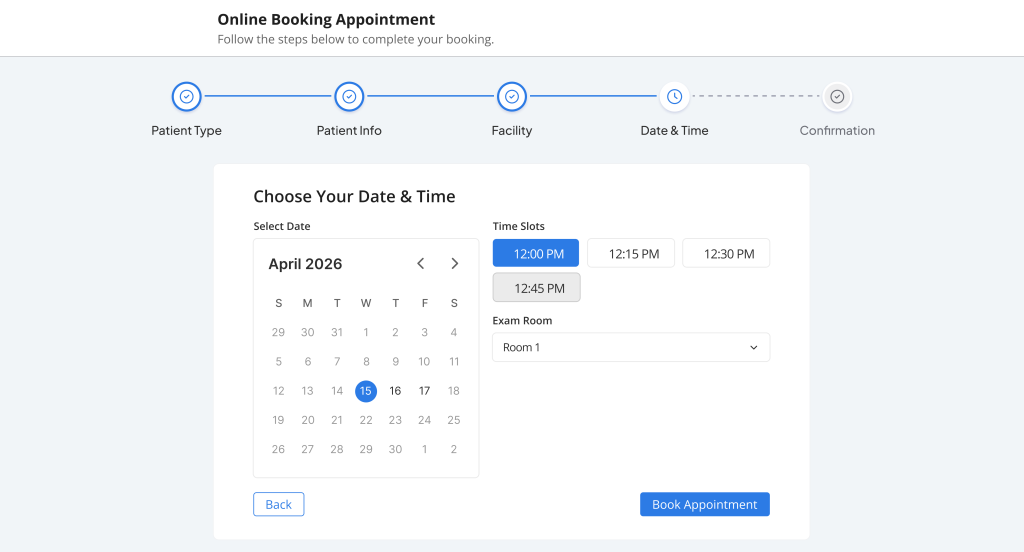
- If a slot is already booked:
- It appears in a different color
- Cannot be selected
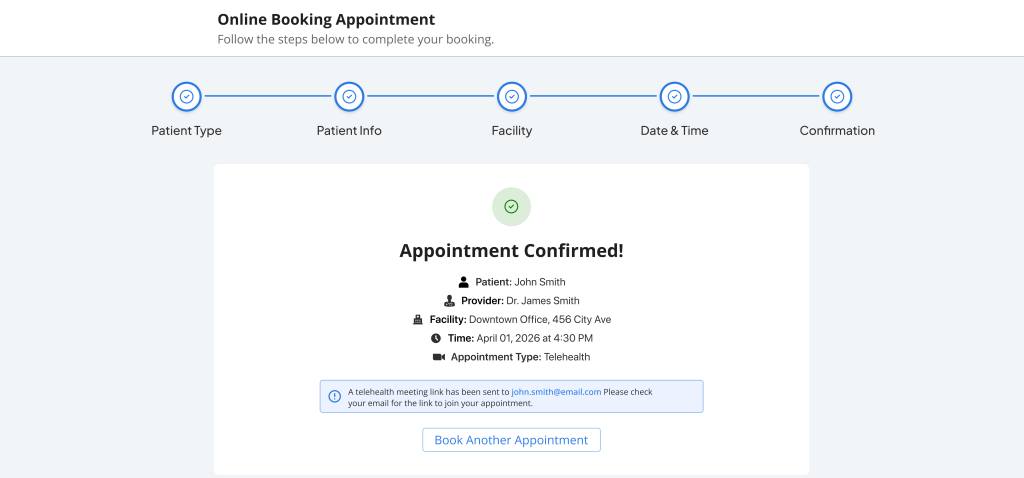
- Click Book Appointment
Existing Patient Booking
- Select Existing Patient
- Search using: Email or Phone Number
- The system automatically fills patient details.
- The appointment scheduling process is the same as the New patient appointment scheduling.