How can we help?
Treatment Plan
Accessing the Treatment Plan
The Treatment Plan menu is available in the Patient Detail page.
- Go to Patient list > Click on a Patient > Navigate to Patient Detail Page
- Scroll below the Patient Financials section.
- Click on the Treatment Plan menu.
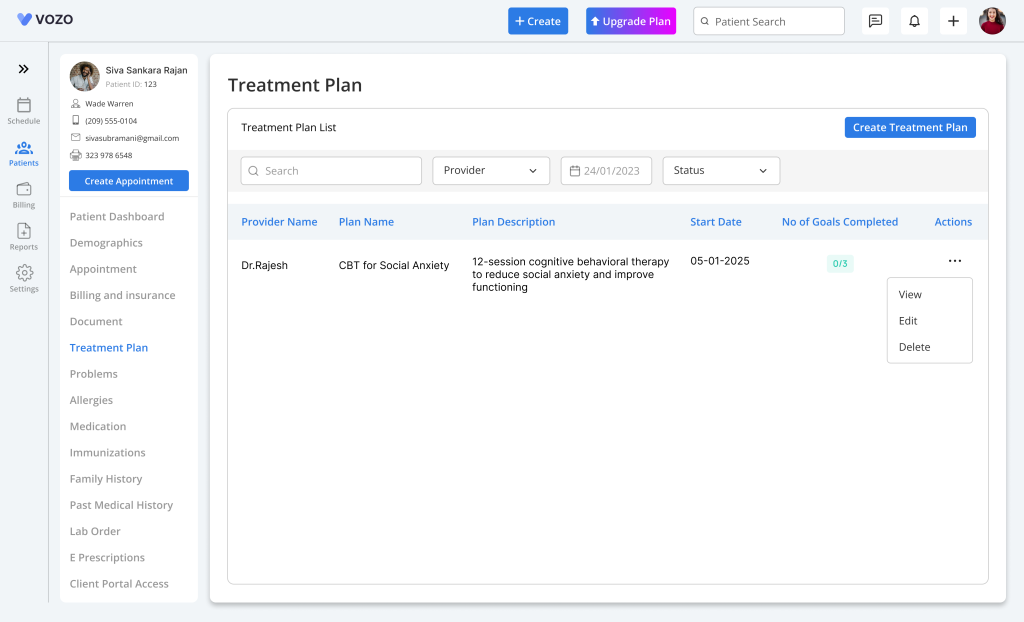
- The Treatment Plan list page opens up.
- You can view all treatment plans created for the patient by the provider.
Creating a New Treatment Plan
To create a new treatment plan:
- Click on the Add Treatment Plan button in the treatment plan screen.
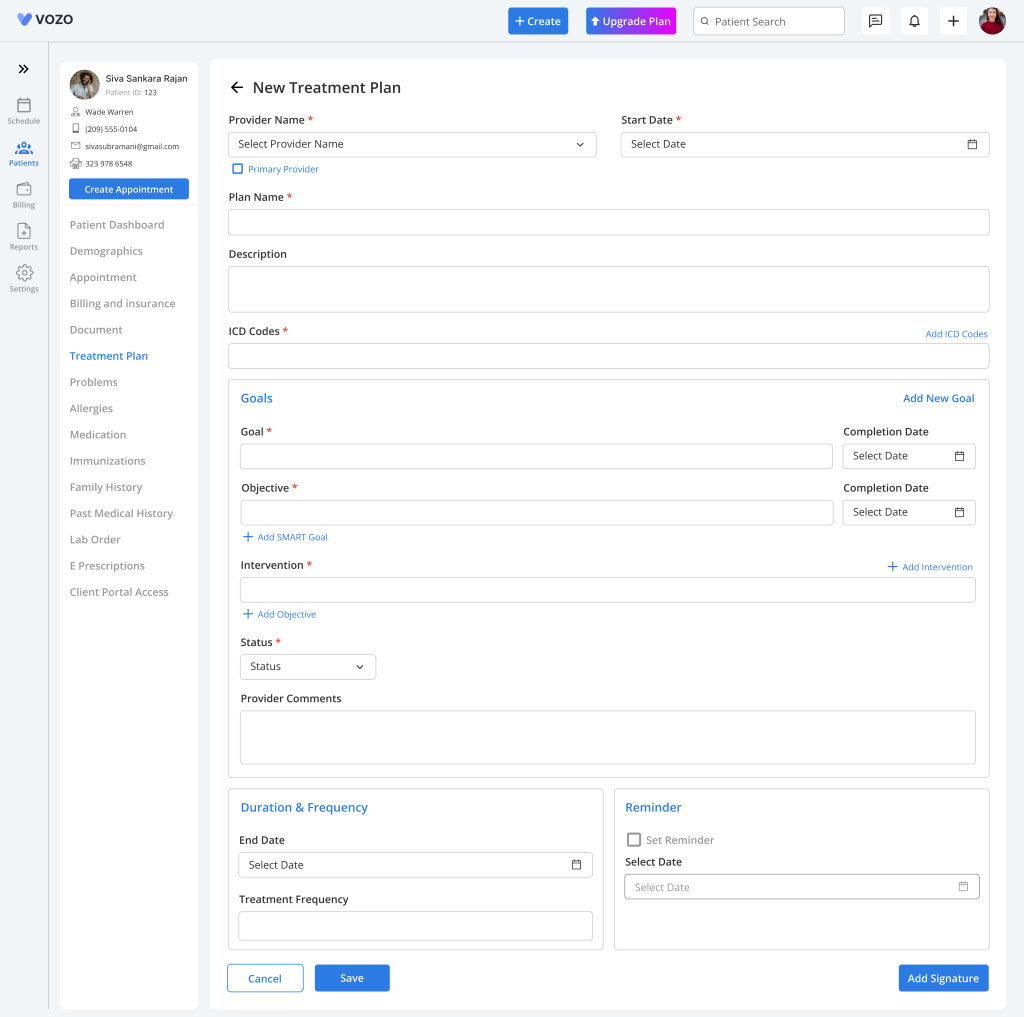
- You will be navigated to the treatment plan creation page displaying the following inputs to create a plan like:
- Plan Name
- Provider
- Start Date
- Description
- Diagnosis Codes (ICD Codes)
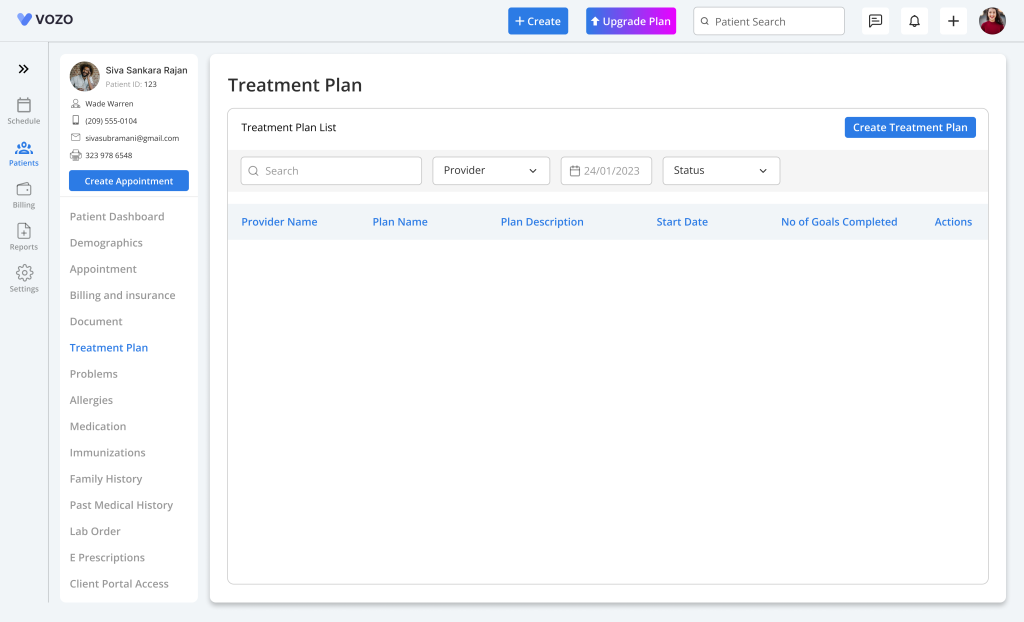
3.Use filters like Search, Provider, Date, and Status to find specific plans.
- The Date filter includes a Cancel option to clear selection.
4.Click “Create Treatment Plan” to add a new plan.
Creating a Treatment Plan
- In the Create Treatment Plan page:
- Select Provider Name from the dropdown
- Enable Primary Provider (optional)
- Select Start Date
- Enter Plan Name
- Enter the Description to document treatment details.
ICD Codes
- Under ICD Codes:
- Search and select ICD code (one per field)
- Click “Add ICD Codes” to add multiple fields
- Each field can be removed individually
- At least one field remains by default
Goals, Objectives & Interventions
- The system provides a default:
- Goal 1 → Objective → Intervention
- Enter Goal details.
- Add Objectives under each goal.
- Add Interventions under each objective.
- Use:
- “Add Objective” → multiple objectives
- “Add Intervention” → multiple interventions
- Click “Add SMART Goal” (optional):
- Only one per objective
- Can be deleted individually
- Deletion rules:
- Deleting Intervention → removes only that item
- Deleting Objective → removes objective + interventions + SMART goals
- Deleting Goal → removes everything under it
Goal Status & Comments
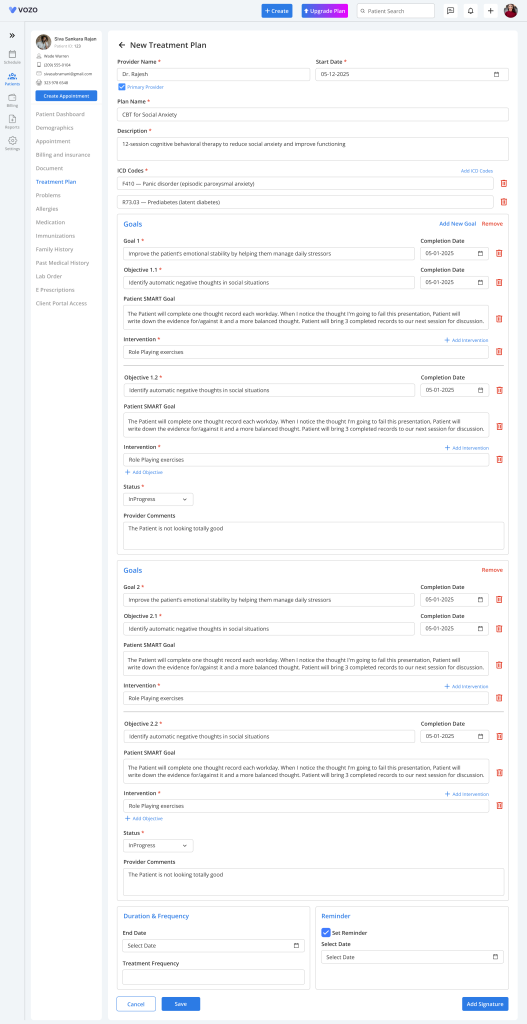
- Select Goal Status:
- In Progress
- Completed
- Cancelled
- Enter Provider Comments:
- Saved with date
- New comments append without deleting old ones
Additional Details
- Select End Date (≥ Start Date).
- Enter Treatment Frequency.
- Enable Reminder (optional):
- Select Reminder Date
- Uncheck to disable
Signature
- Click “Add Signature”:
- Enter provider name
- Saved with system date
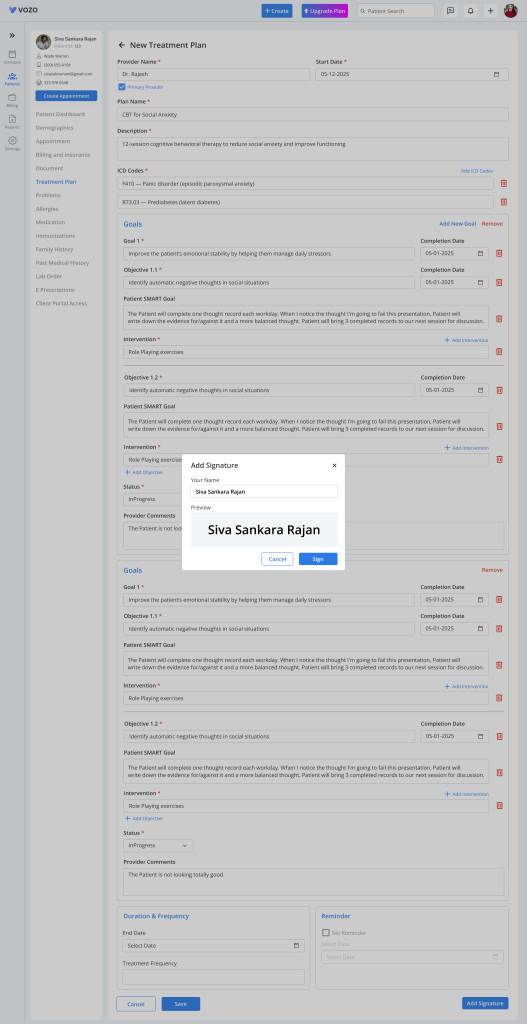
Save / Cancel
- Click “Save” to store the treatment plan and return to list page.
- Click “Cancel”:
- Shows warning: Unsaved changes
- Confirm to discard data
After Saving
- The plan appears in the Treatment Plan List with updated goal count.
- Use Actions:
- View → Full plan details
- Edit → Modify plan
- Download → Export as PDF
- Delete → Remove permanently
- Only the creating provider can edit or delete.
- On delete:
- Confirmation popup appears
- Click Confirm to proceed