
How can we help?
Patient Appointment Reminders
Send Appointment Reminders to Patients
The Appointment Notifications & Reminders feature helps users automatically send appointment reminders to patients through Email, SMS, and Voice Call while creating or editing appointments. This helps reduce missed appointments and improves patient communication.
- Appointment reminder settings are available in:
- Create Appointment popup
- Edit Appointment screen
- Calendar booking module and
- In Patient Demographics
- Open any appointment booking screen to access reminder settings.
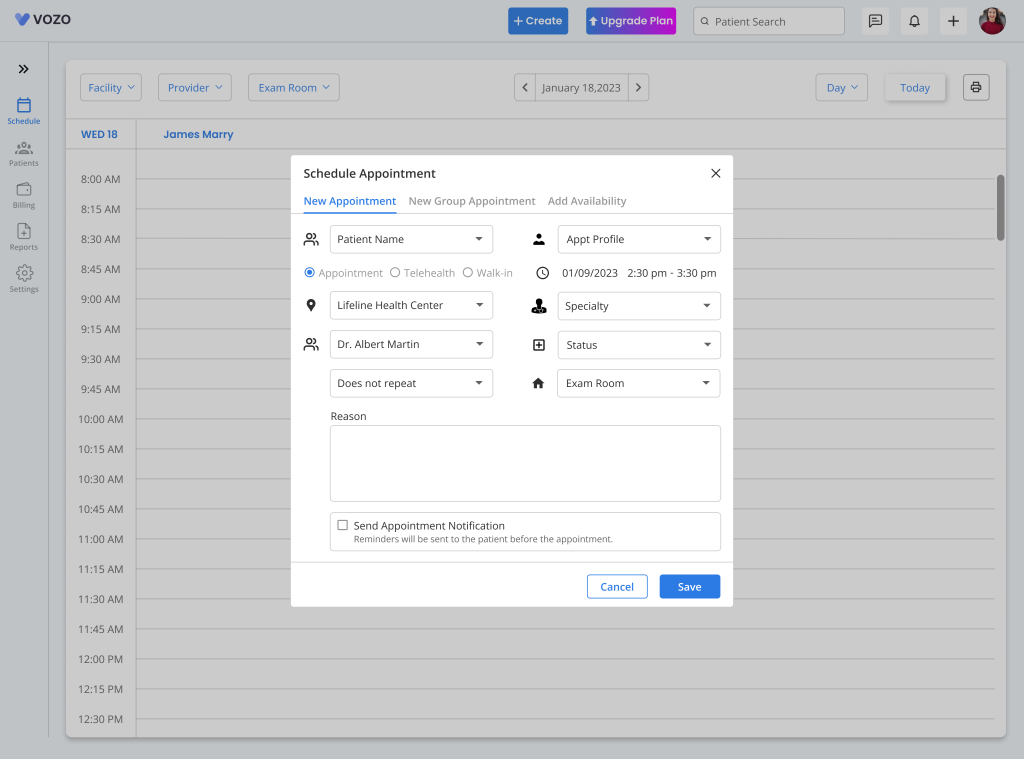
Enable Appointment Notifications
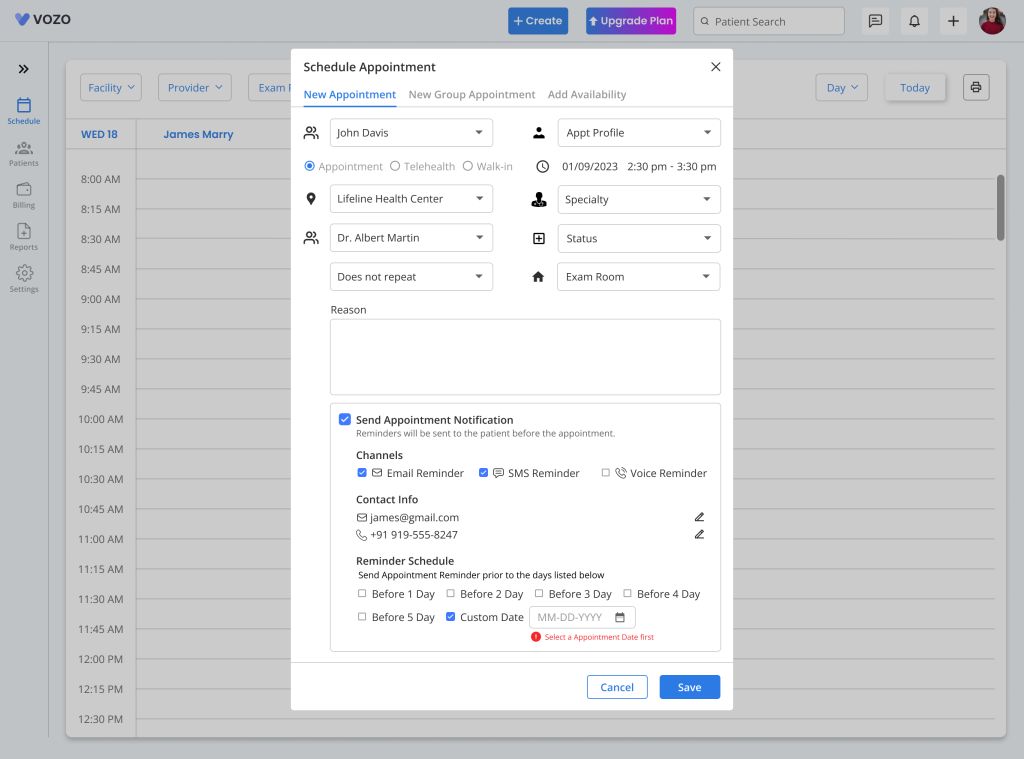
- Inside the appointment popup a checkbox is displayed: ☑ Send Appointment Notifications
- If checked:
- Reminder settings panel opens
- Notification channels become available
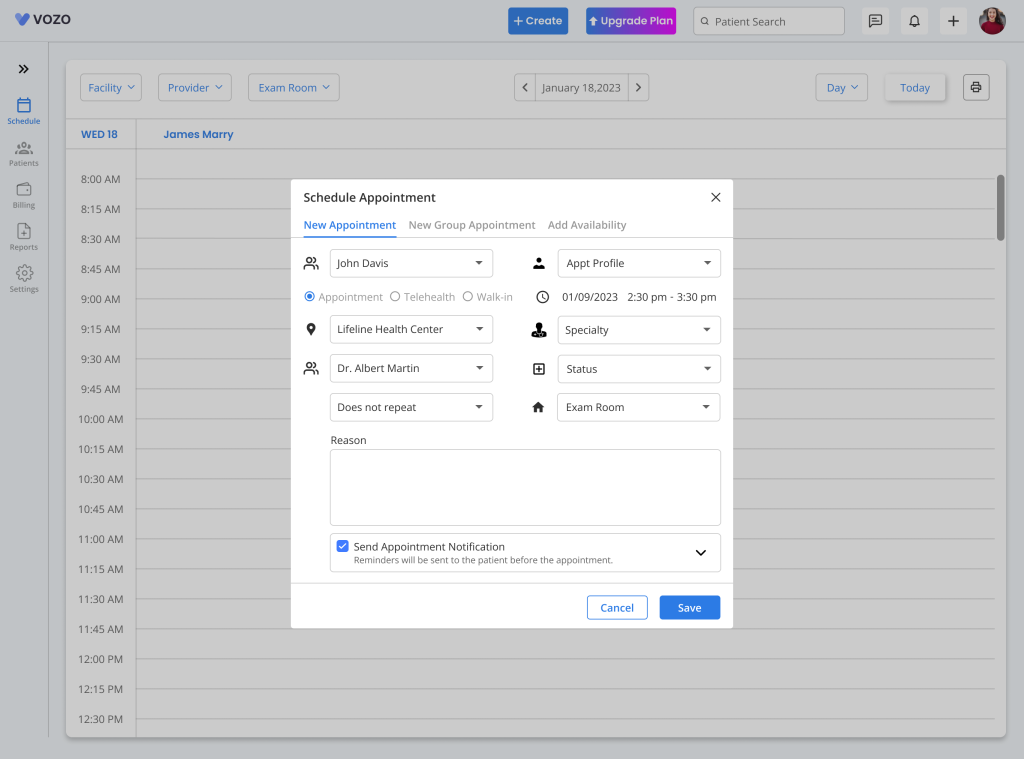
- If unchecked:
- Reminder settings are hidden
- No reminders are scheduled
- When editing an appointment:
- Previously saved reminder settings load automatically
Notification Channels
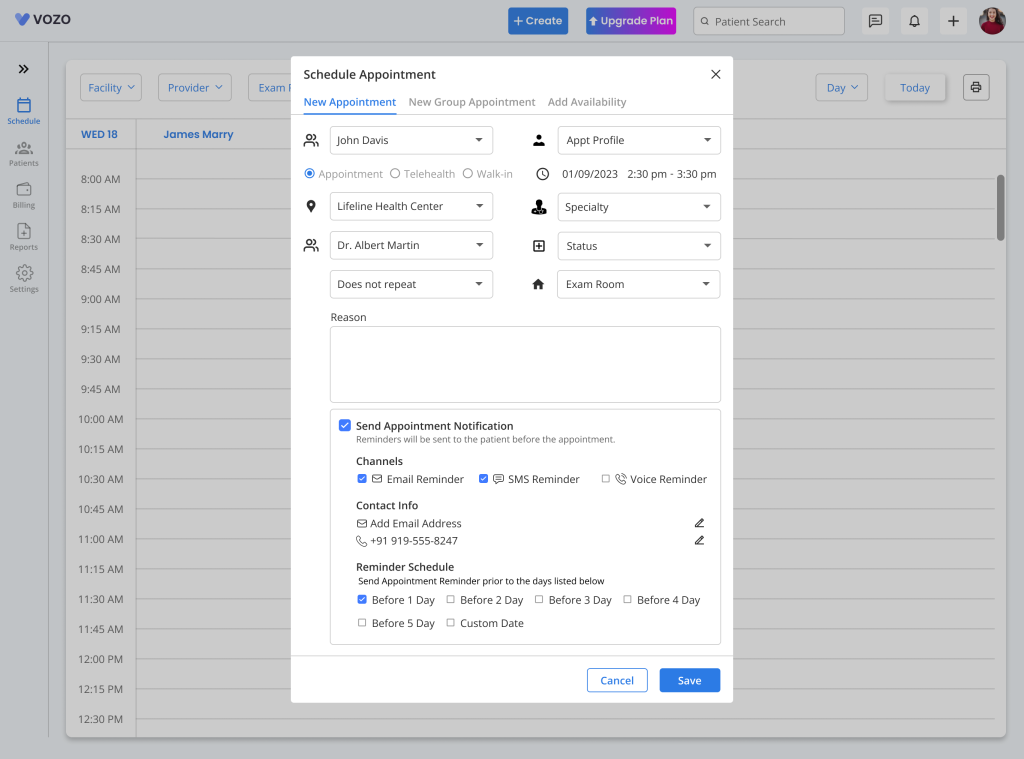
- Users can choose one or more reminder methods.
- Available options:
- Email Reminder
- SMS Reminder
- Voice Reminder
- Multiple channels can be selected like Email, and SMS.
Email Reminder
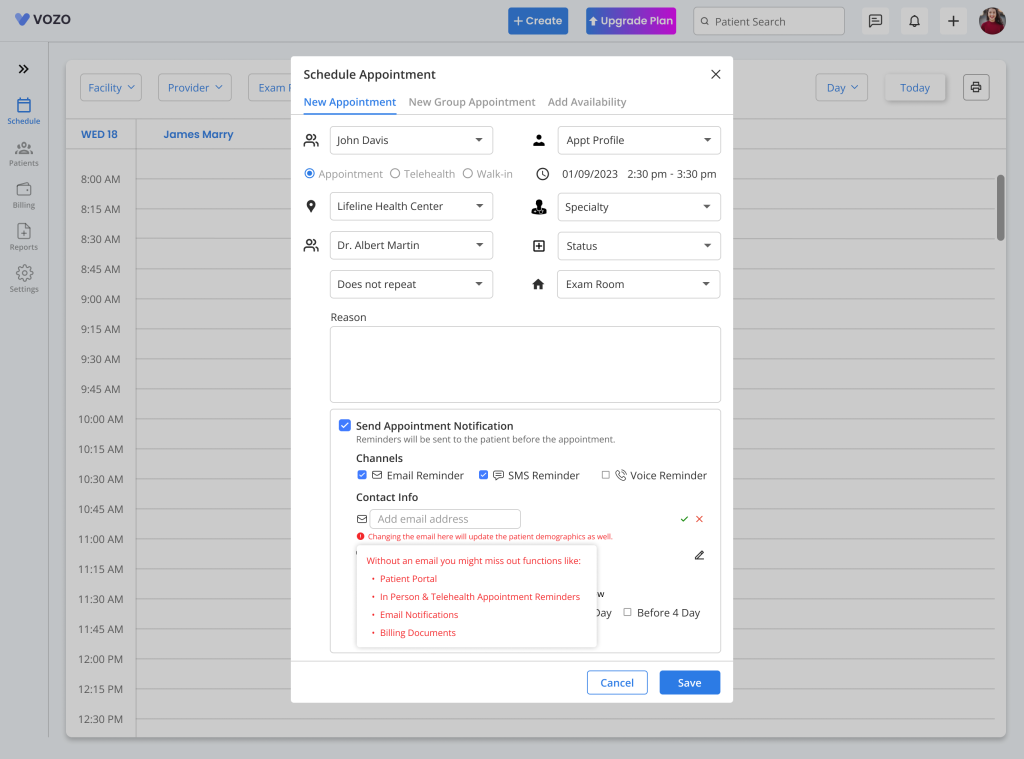
- Used to send appointment reminder by email.
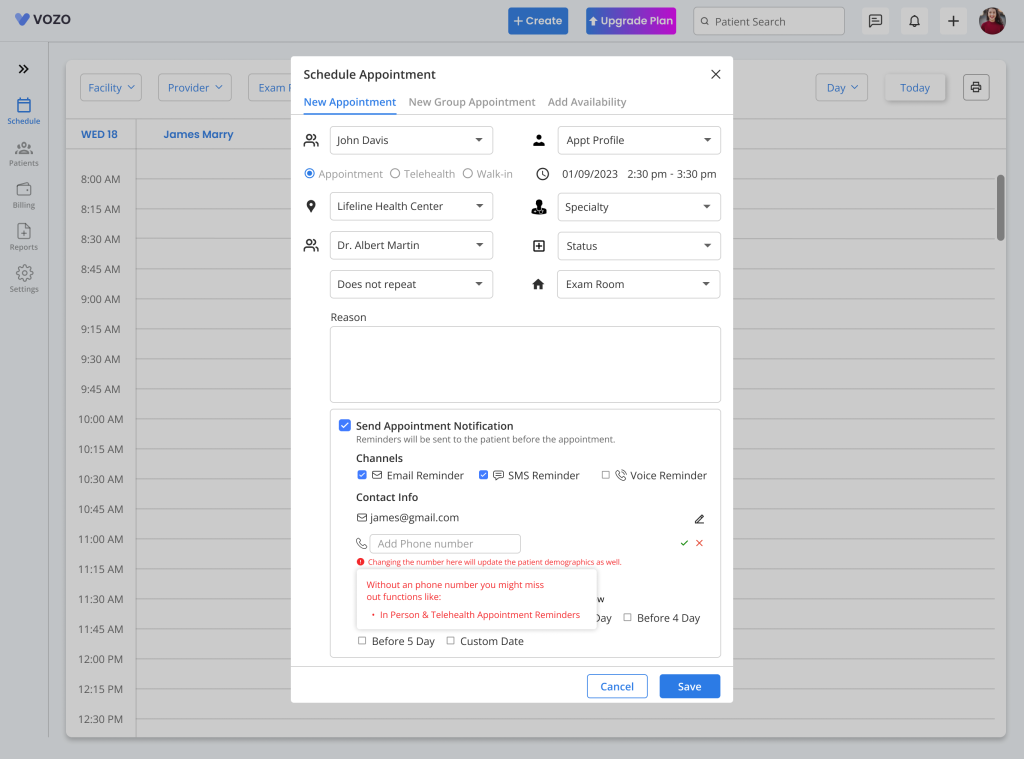
- It can only be sent if patient email is already exists
- The reminder can’t be sent if the email is missing
SMS Reminder
- Used to send text message reminders.
- It can only be sent if the patients mobile number exists and Twilio is integrated.
- It can’t be sent if the mobile number is missing.
Voice Reminder
- The same applies to send automated voice calls.
Patient Contact Information
- Reminder section displays patient details:
- Email Address
- Phone Number
- Each field includes: Edit icon
- Click the Edit icon beside email.
- The field becomes editable where the user can enter and save the patient Contact address
Reminder Timing
- Choose when reminders should be sent.
- TheaAvailable options are:
- 1 day before appointment
- 2 days before appointment
- 3 days before appointment
- 4 days before appointment
- 5 days before appointment
Custom Reminder Date & Time
- Users can also select Custom Date & Time.
- When selected system shows:
- Date Picker
- Time Picker
Save Appointment
- After appointment details are completed, click Save to save the appointment.
- Once saved the system will:
- Save appointment
- Save reminder settings
- Schedule reminders automatically