How can we help?
Lifestyle and Diet Recommendation
Overview
- The Lifestyle & Diet Recommendation feature helps patients track daily lifestyle activities while allowing providers to monitor progress, review entries, and assign personalized diet recommendations.
- Providers can use predefined recommendations, create custom recommendations, and maintain a reusable diet recommendation library for future patient care.
Configure Lifestyle Categories
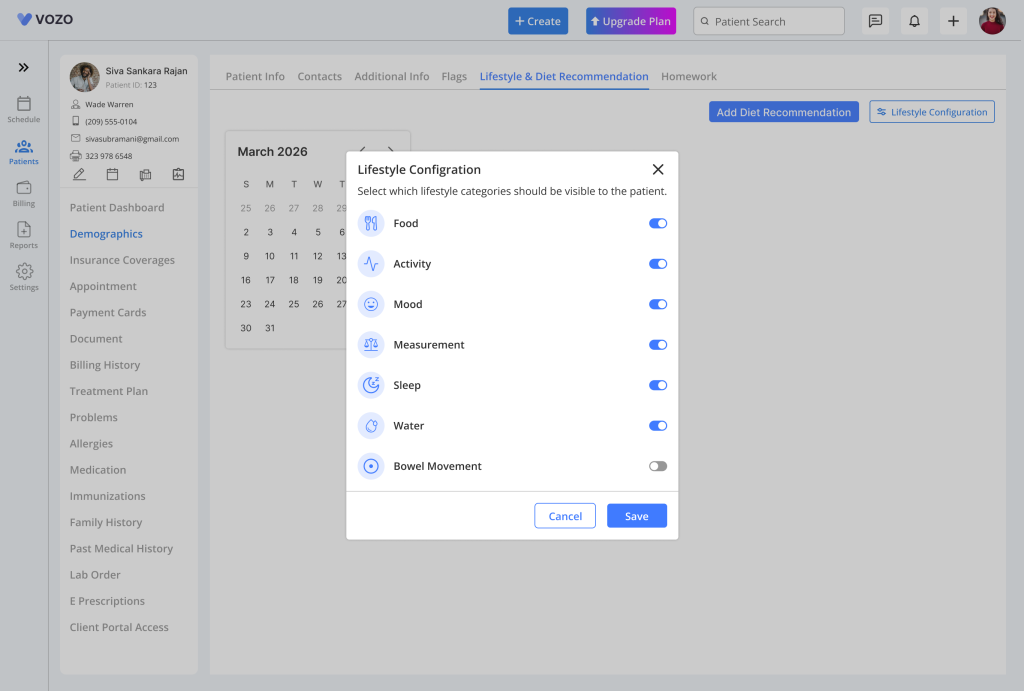
- Before patients can start recording lifestyle information, providers can control which lifestyle categories are available in the Patient Portal.
- Navigate to the Lifestyle & Diet Recommendation settings page and enable or disable the categories that should be visible to patients. Available categories include Bowel Movement, Mood, Activity, Measurements, Sleep, Water Intake, and Food Tracking.
- After making the required changes, click Save. Only the enabled categories will be displayed to patients when they enter lifestyle information.
View Lifestyle Entries
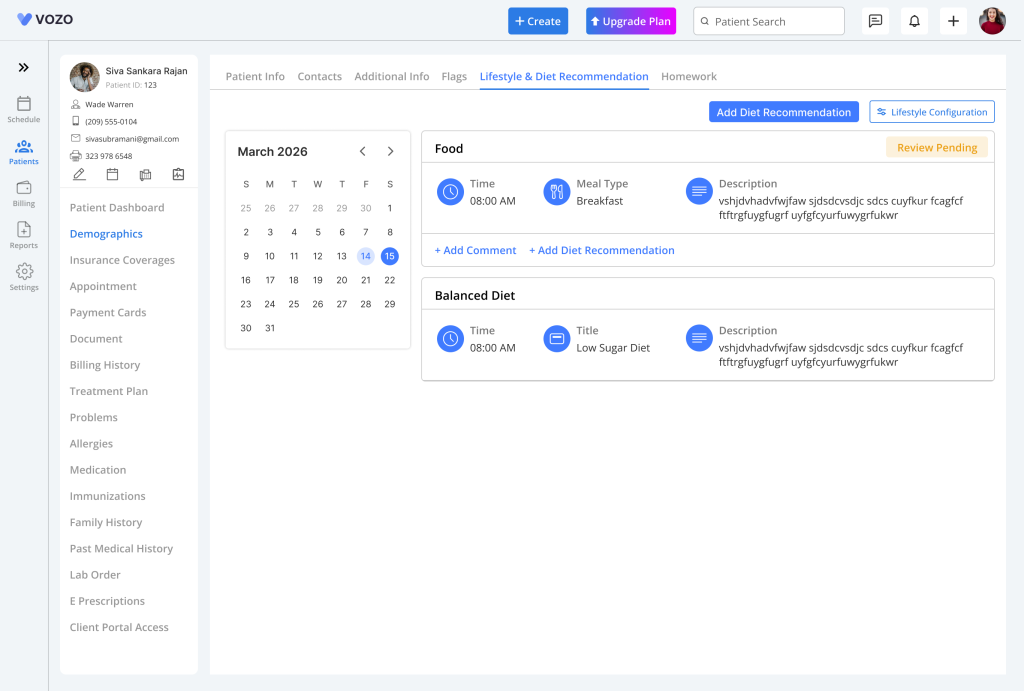
- Patient can add their daily activities from patient portal based on the available categories which will be listed in the Patient > Patient Demographics > Lifestyle & Diet Recommendations page
- Every lifestyle entry is stored as an individual record and can be viewed by the provider.
- Each entry displays:
- Date and Time
- Lifestyle Information
- Review Status
- Provider Comments
- Entries are grouped chronologically, making it easy to review patient activity over time.
- The Provider can open the patient’s entry, review the submitted information, and add comments & diet recommendations when needed, which marks the Pending status as Reviewed in Patient portal.
- Once reviewed, the status is updated automatically and the provider’s comments become visible in the Patient Portal.
Entry Status
- Each lifestyle record displays one of the following statuses:
- Pending Review
- Reviewed
- The status helps providers and patients understand whether an entry has already been reviewed.
View Lifestyle Data in Calendar Format
- The providers can use the Calendar View to review lifestyle activity by date.
- Open the calendar and select any day to view the lifestyle entries recorded for that specific date. This provides a simple way to review historical lifestyle information and track consistency.
Diet Recommendations
Assign a Diet Recommendation
- Providers can assign diet recommendations directly during a patient visit.
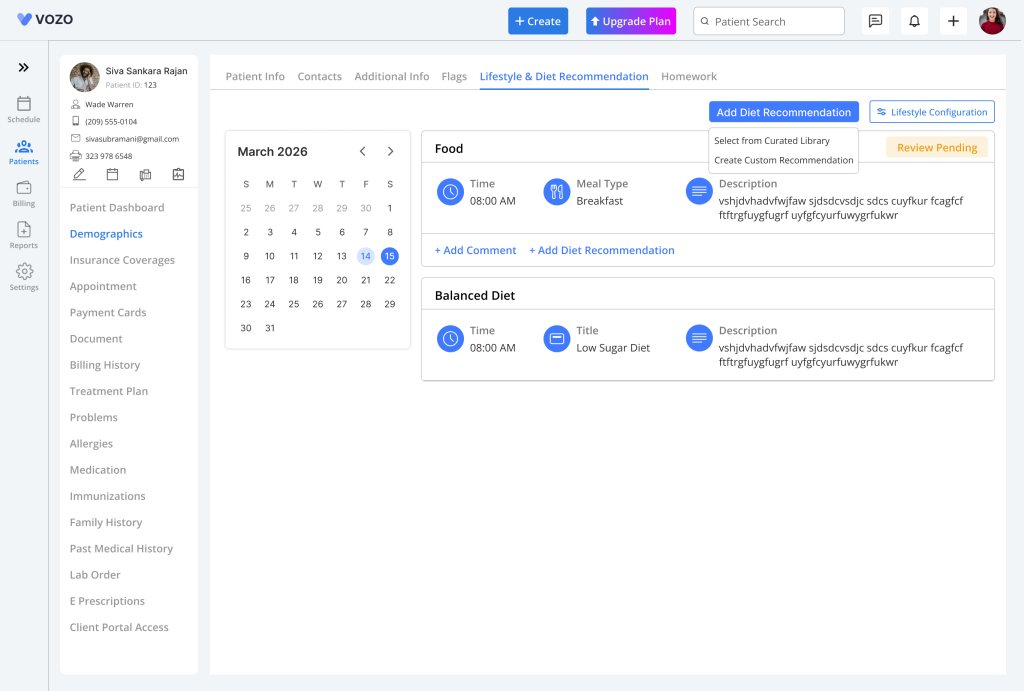
- Click the Add Recommendation button located at the top-right corner of the Lifestyle & Diet Recommendation screen. A dropdown menu will appear with available recommendation options.
- Available options include:
- Select from Curated Library
- Create Custom Recommendation
Use Recommendations from the Curated Library
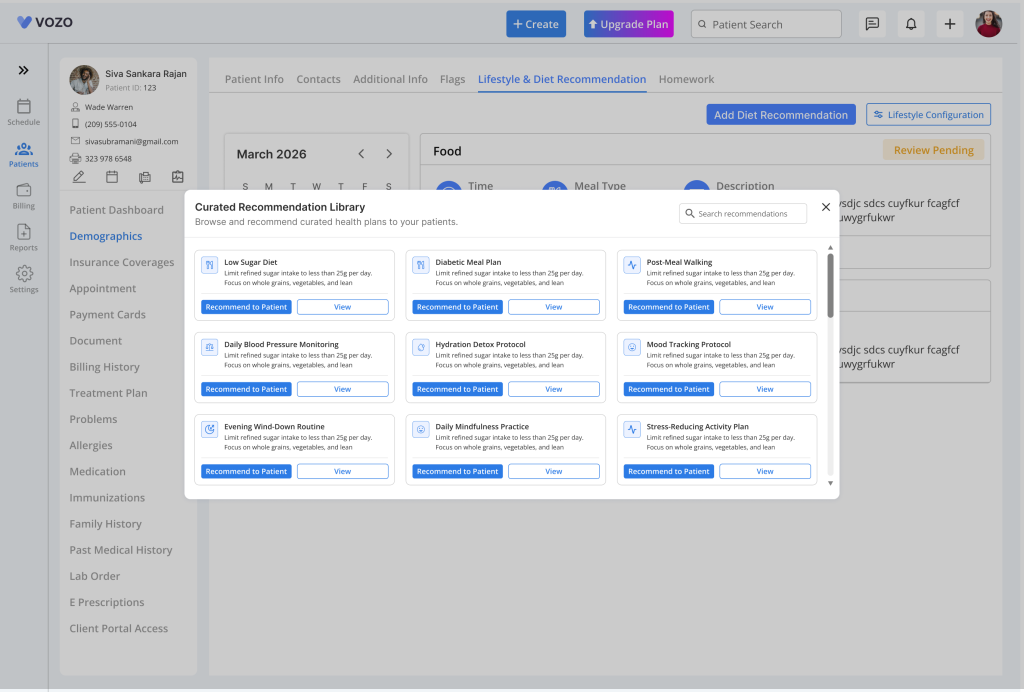
- The Curated Library contains predefined diet recommendations that can be assigned quickly to patients.
- When the library is opened, recommendation cards are displayed showing the title, description, and available tags. Providers can preview a recommendation or assign it directly to a patient.
- Click Recommend to Patient, select the patient, and then click Assign.
- The recommendation will immediately become available in the patient’s Lifestyle & Diet section.
Create a Custom Diet Recommendation
- Providers can create patient-specific recommendations whenever a predefined option is not appropriate.
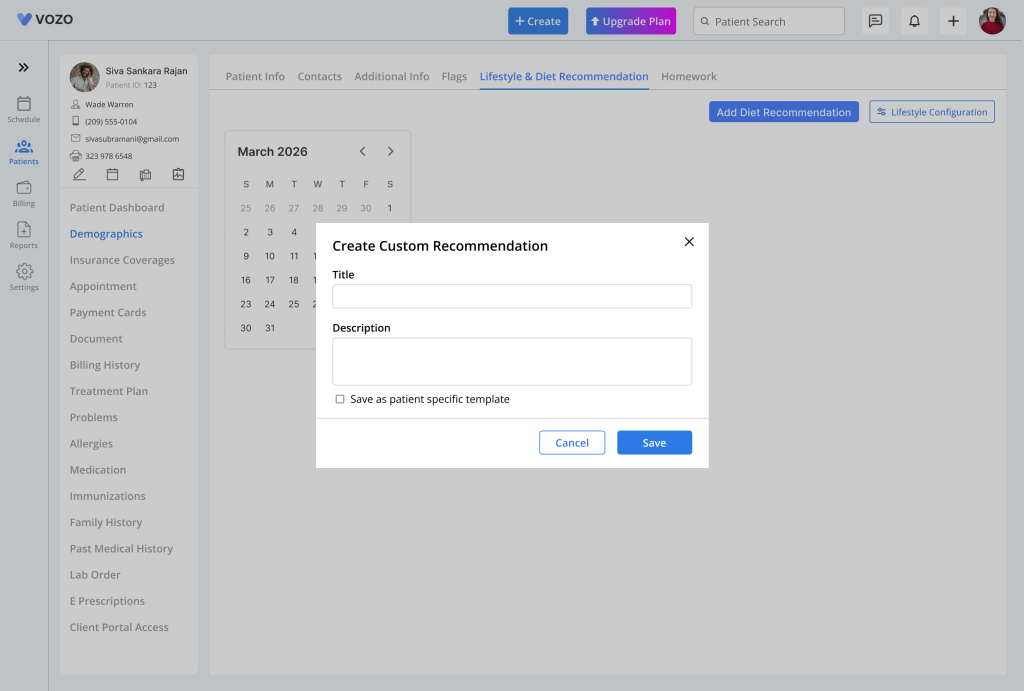
- Select Create Custom Recommendation from the recommendation menu. Enter a title and description, then choose whether the recommendation should be saved as a reusable template.
- Click Save to assign the recommendation to the patient.
- The recommendation is immediately available for patient viewing.