
How can we help?
-
Sign Up Your Account
-
Get Started
-
Appointments
-
Reporting & Analytics
-
Patient Management
- Patient Dashboard
- Patient Demographics
- Adding Patient Insurance
- Prior Authorization
- Insurance Eligibility Verification
- Additional Info
- Manage Patient's Contacts
- Flags
- Manage Patient Homework
- Patient Appointments
- Managing Credit Cards
- Documents
- Problems
- Allergies
- Medications
- Immunizations
- Family History
- Past Medical History
- Client Portal Access
- Creating New Patient
- Treatment Plan
- Sending Form to Patient
- Good Faith Estimate
- Patient Care Summary
- Patient care checklist
- Outcome Measures
- Imaging
- Patient Group & Group Appointment
- Assigning Membership plan
- Lifestyle and Diet Recommendation
- Show Remaining Articles (5) Collapse Articles
-
E-prescriptions
-
Lab Orders & Results
-
Task Management
-
Messaging
-
Feedback & Support
-
Insurance Billing
-
Practice Dashboard
-
Appointments Dashboard
-
Provider Availability
-
Appointment Profile
-
Billing Profile
-
Audit Log
-
Patient Payments
-
Patient Statements
-
Patient Ledger
-
Fee Schedule
-
Manual Insurance Payment Posting (EOB)
-
Card Transactions
-
Automatic Insurance Payment Posting (ERA - Electronic Remittance Advice)
-
Patient Flag
-
Note Taking
-
Macro Buttons
-
Patient Education
-
Incoming & Outgoing Fax
-
Referral Management
-
Account Settings
-
Billing & Services
-
Scheduling Settings
-
Administration Settings
-
Clinical Notes
-
Add-Ons
-
Explore Vozo
-
Patient Portal
-
Calendar Dashboard
-
Patient List
-
Integrations
-
Account cancellation
-
Dashboard
-
Batch eligibility
-
Patient Superbill
-
Membership Plan
-
Diet Recommendation Library
Home >
Services
Views42
- Click on Settings > Billing & Services > Services menu.
- Add and manage service billing codes used during appointments and for insurance claims submissions.
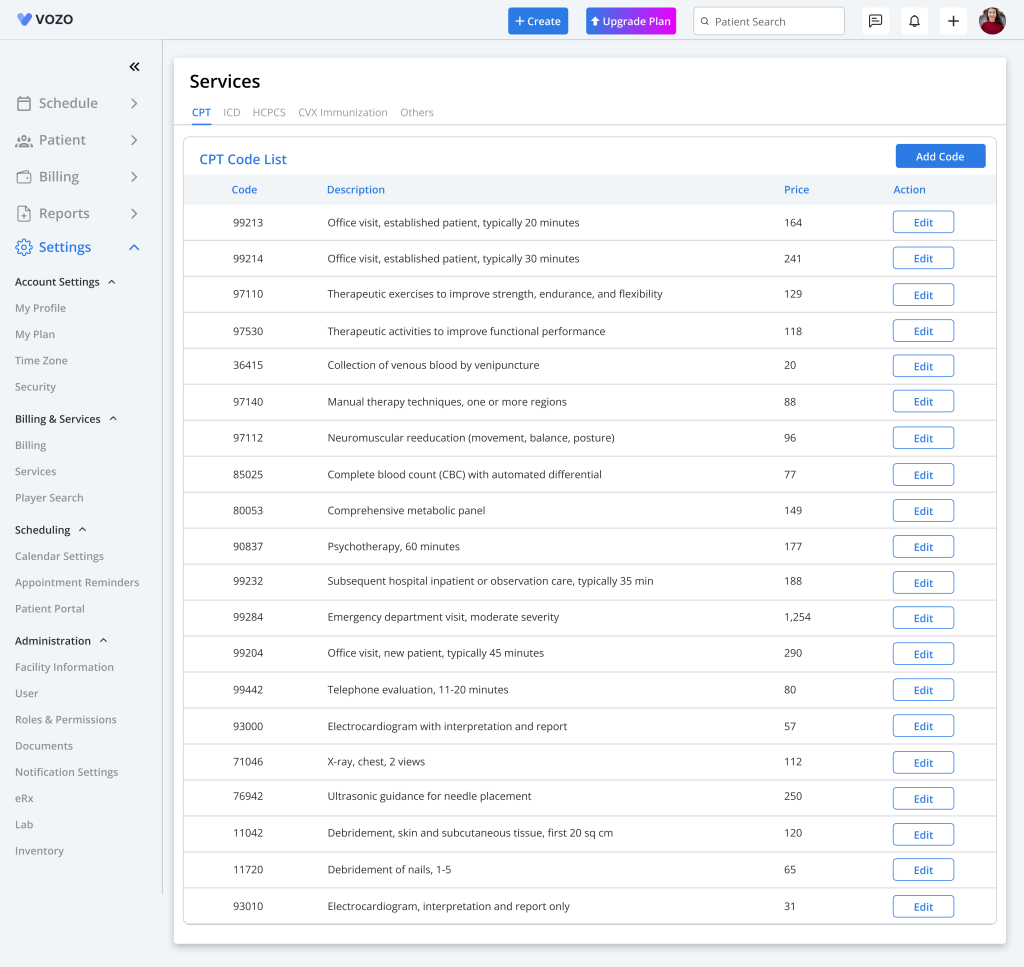
- By default, we have listed some of the most commonly used Diagnosis & Procedure Codes in the application based on their respective code types.
- In the CPT4 code tab, we have listed the 20 most-used codes. To add additional CPT codes, click on the “Add Code” button.
- In the “Add Services” pop-up, CPT will be the default code type, and enter the required details.
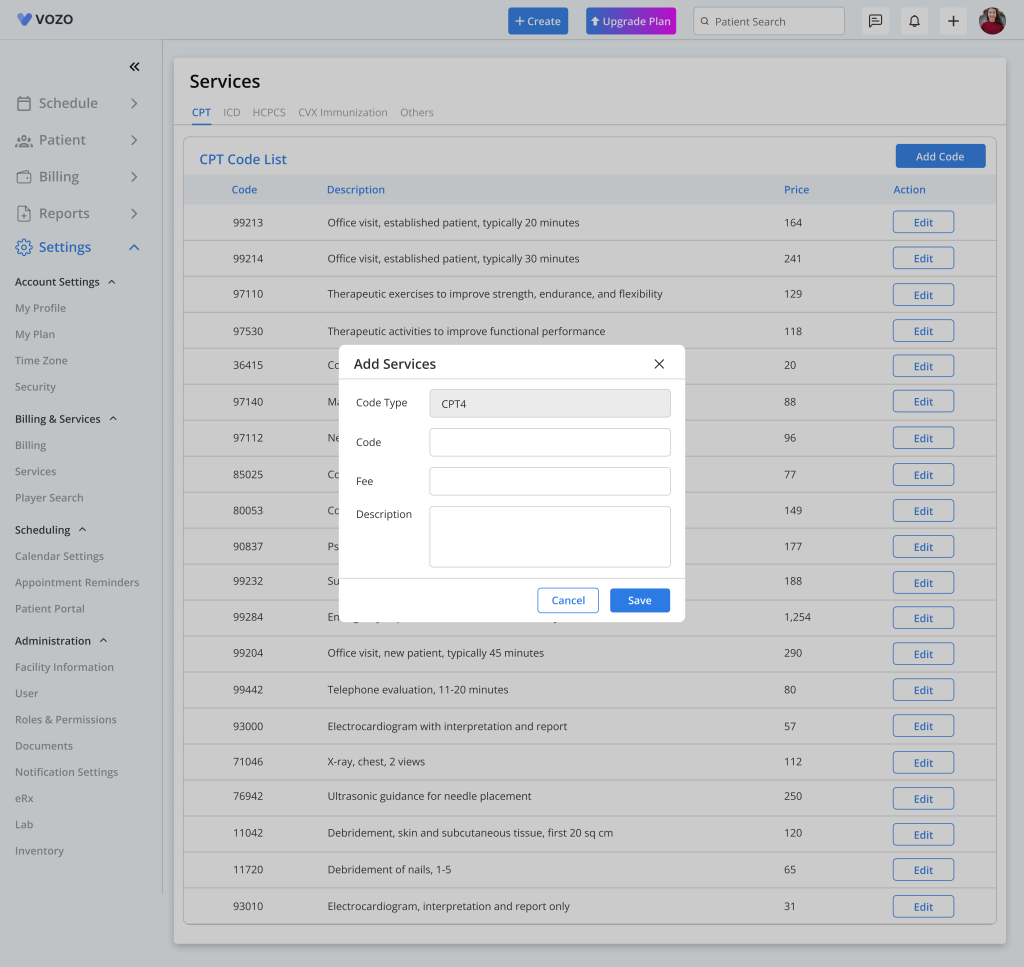
- Click the “Save” button to save the added CPT code in the CPT list.
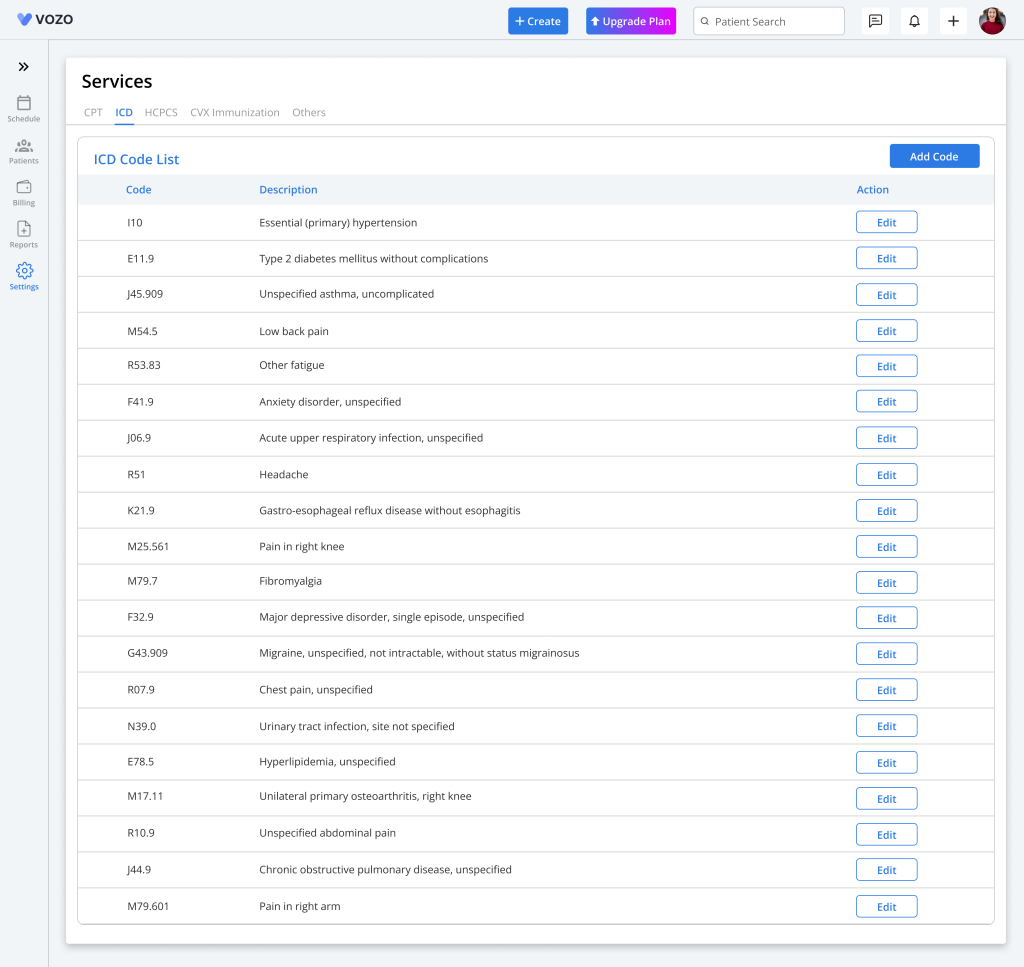
- In the ICD10 code tab, we have listed the 20 most-used codes. To add additional ICD10 codes, click on the “Add Code” button.
- In the “Add Services” pop-up, ICD10 will be the default code type, and enter the required details.
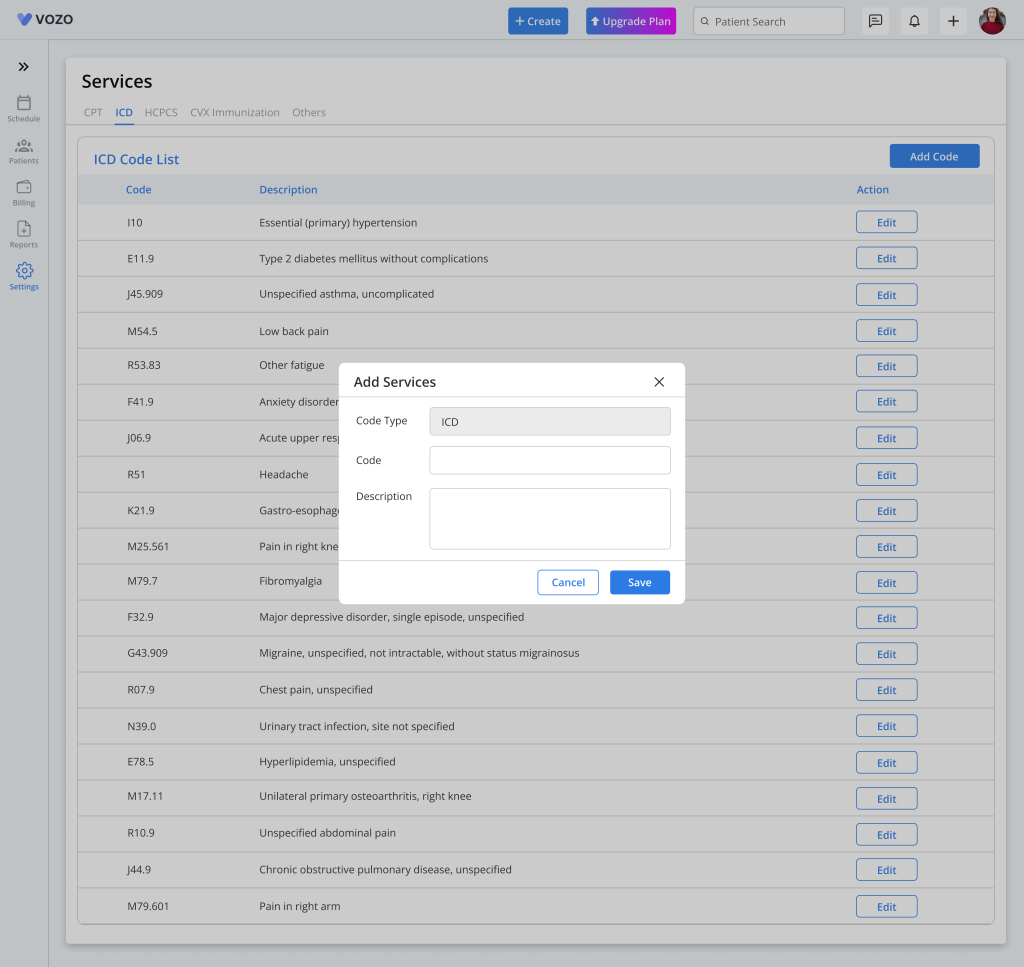
- Click the “Save” button to save the added ICD10 code in the ICD list.
- In the HCPCS code tab, we have listed the 5 most-used codes. To add additional HCPCS codes, click on the “Add Code” button.
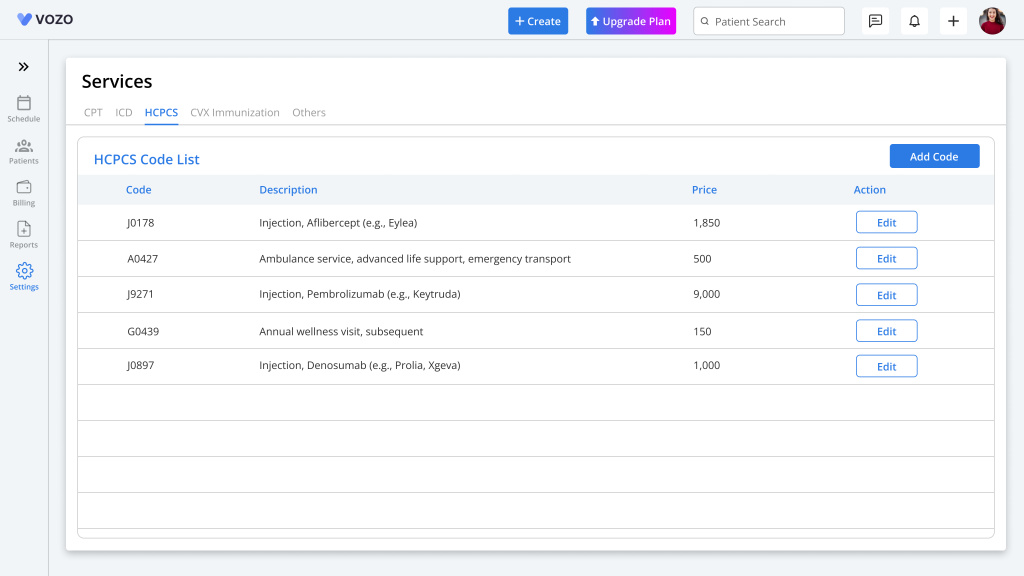
- In the “Add Services” pop-up, HCPCS will be the default code type, and enter the required details.
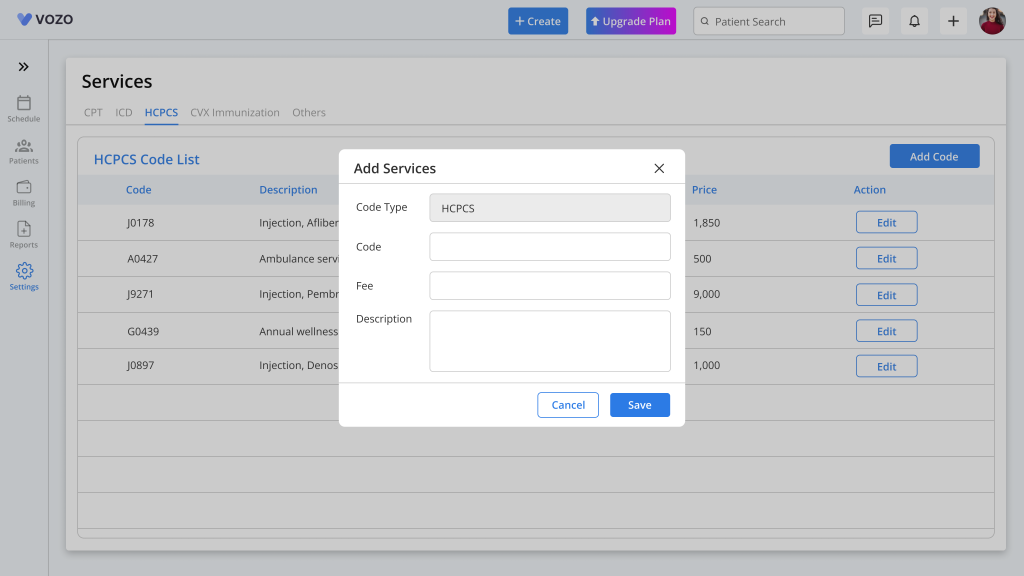
- Click the “Save” button to save the added HCPCS code in the HCPCS list.
- In the CVX Immunization code tab, we have listed the 5 most-used codes. To add additional CVX codes, click on the “Add Code” button.
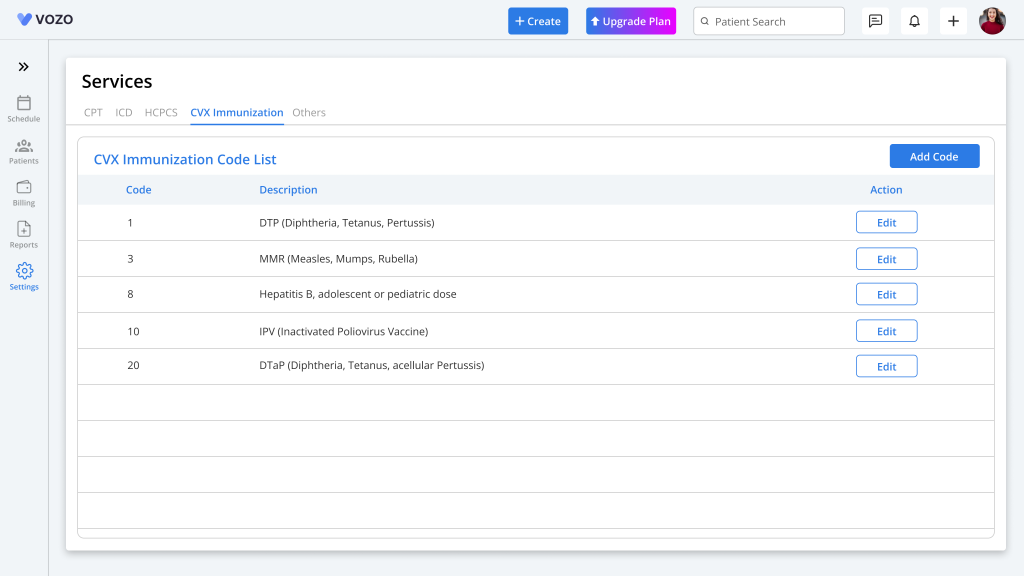
- In the “Add Services” pop-up, CVX Immunization will be the default code type, and enter the required details.
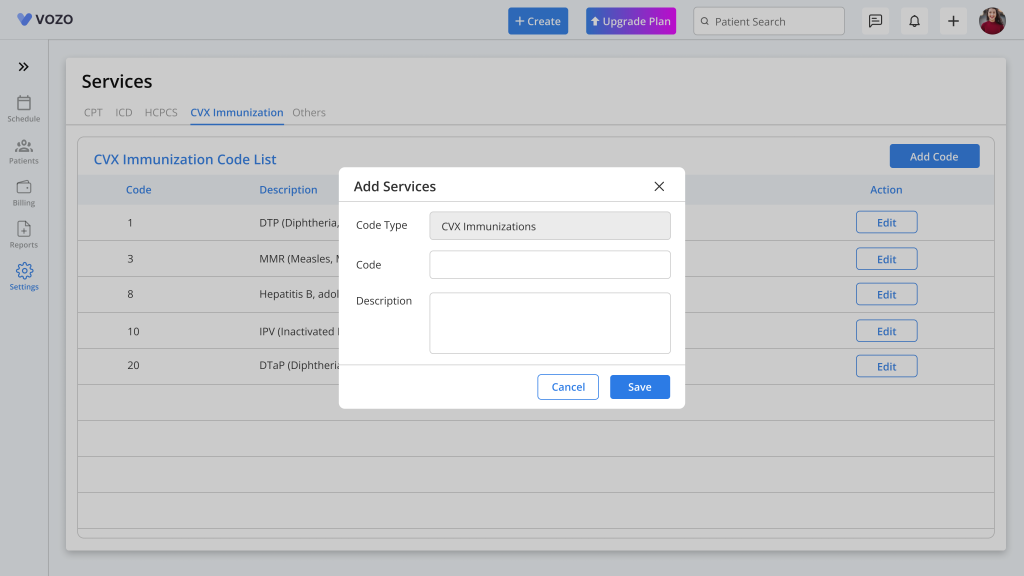
- Click the “Save” button to save the added CVX code in the CVX list.
- In the Custom code tab, the list will be empty. To add additional Custom codes, click on the “Add Code” button.
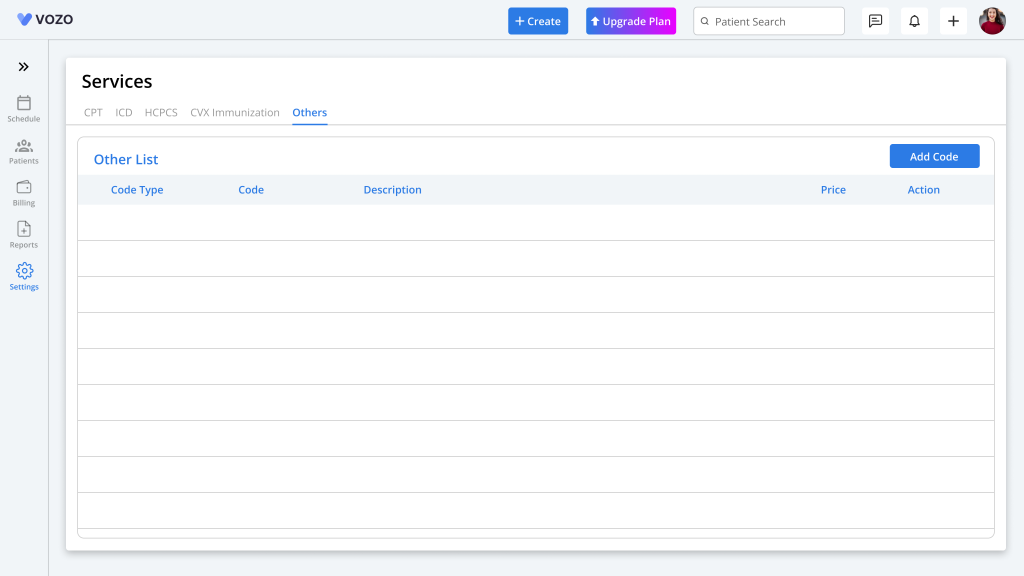
- In the “Add Services” pop-up, enter the following details:
- Code Type (Other than CPT, ICD10, HCPCS, CVX)
- Code
- Fees
- Description
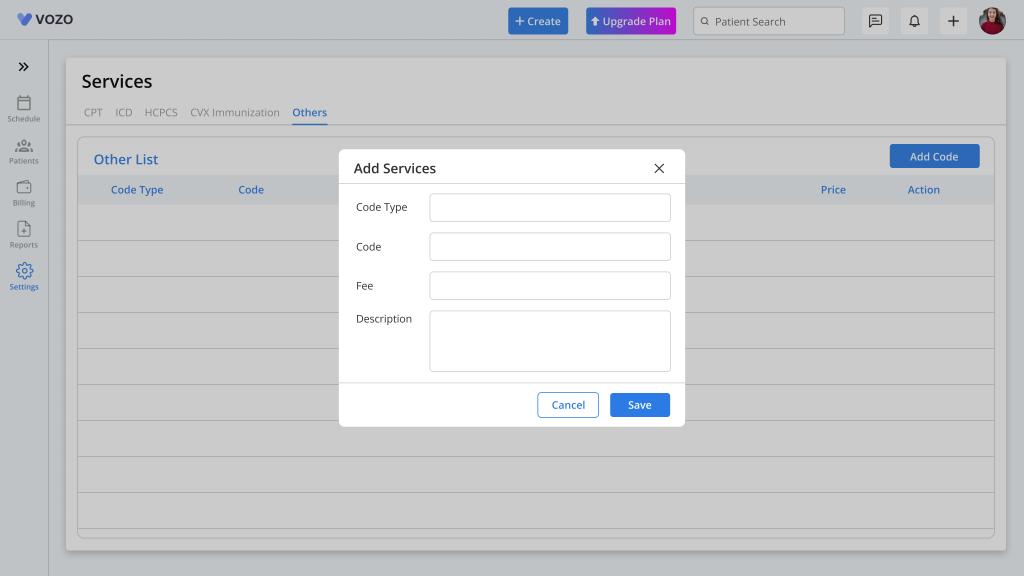
- Click the “Save” button to save the added Custom code in the list.
- To edit any of the codes based on the code type, click on the “Edit” button, change the details, and click the “Save” button to save changes.
Table of Contents