How can we help?
Adding Clinical Notes
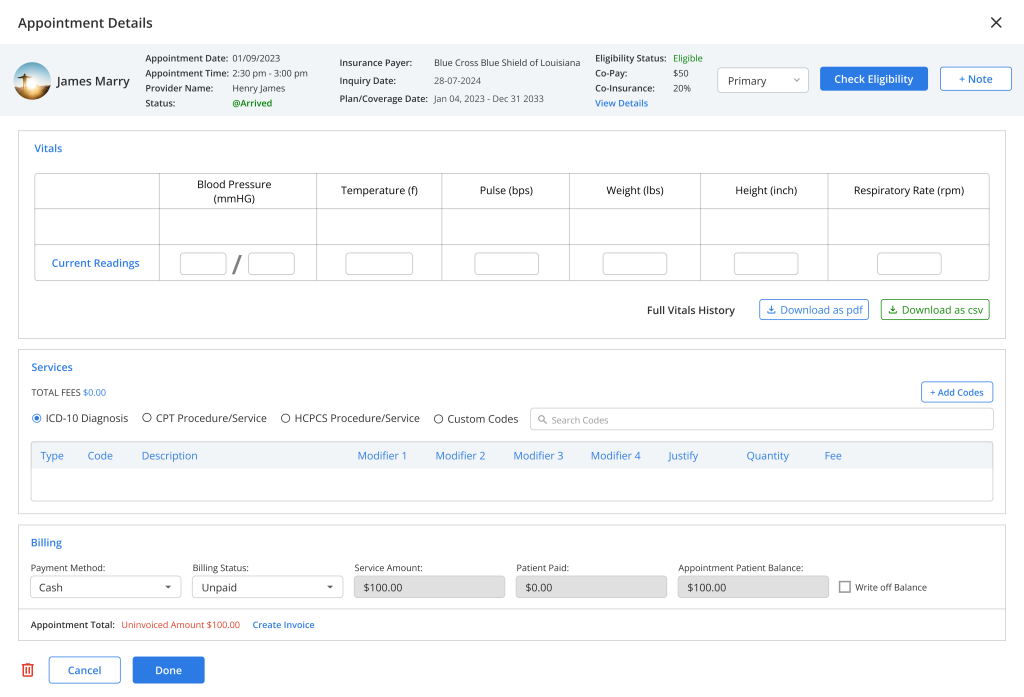
- From the “Appointment Details”, click on the “Add Note” button to add clinical notes for the appointment.
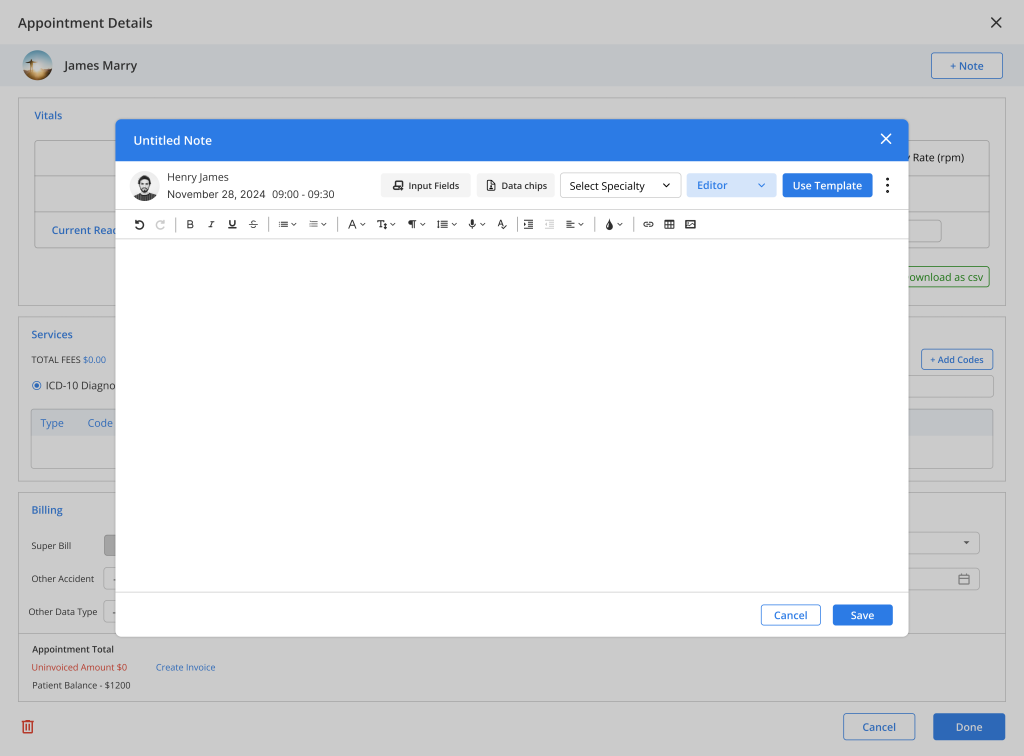
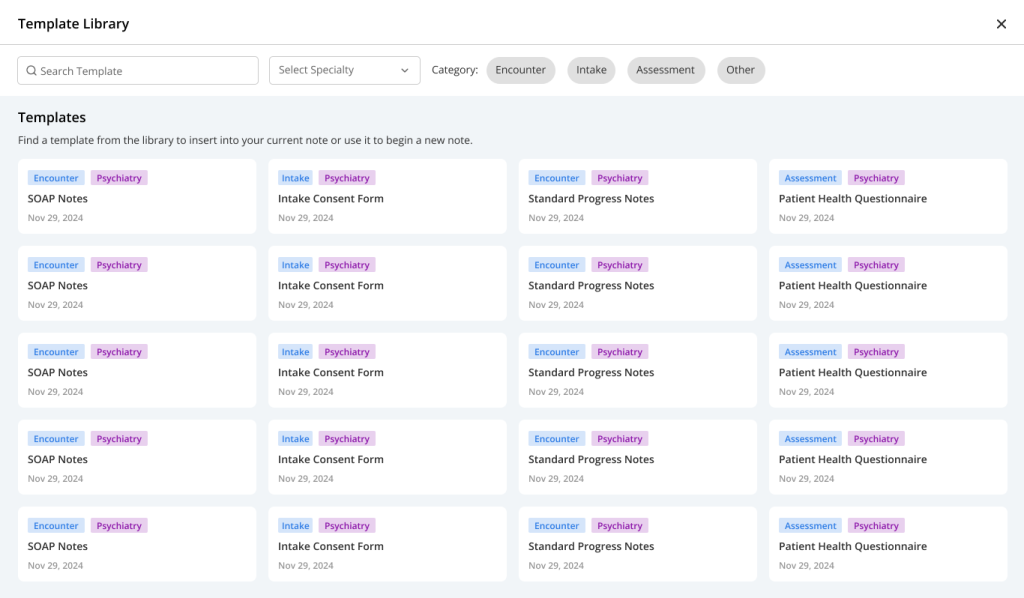
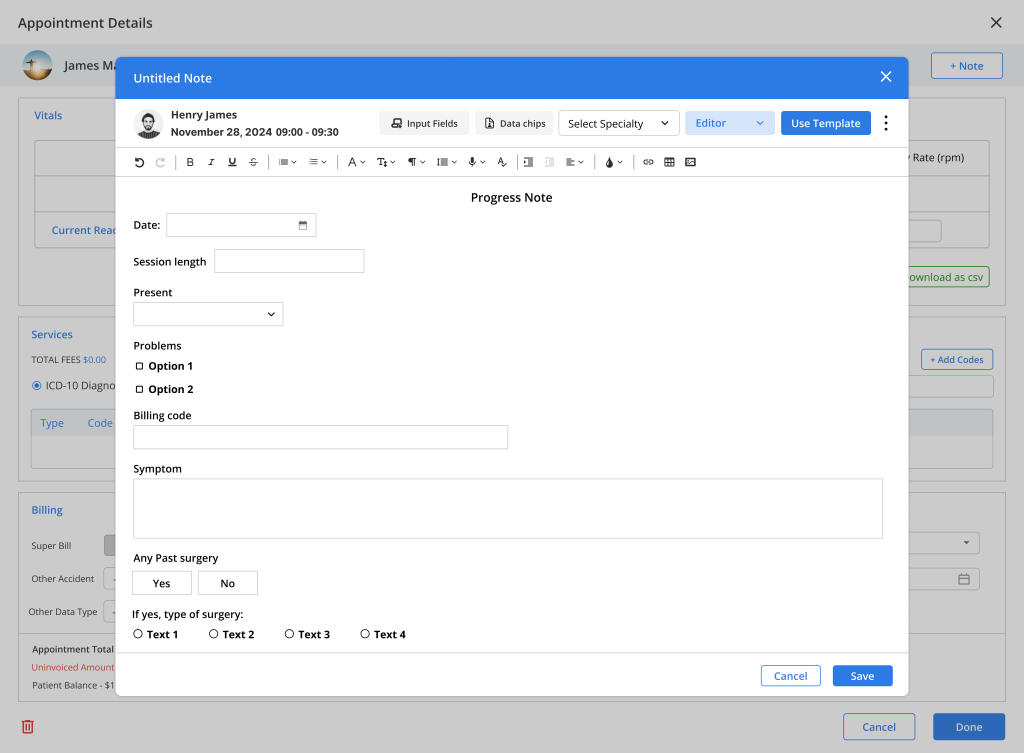
- In the notes editor, users can create a new note by typing and using the Input fields or use an existing template from the template library by clicking on the “Use Template” button.
- After creating or adding the notes, the user can change the note editor pop-up from “Editor” mode to “Viewer” mode to enter the details in the text fields.
- The user can also preview how the notes will be displayed to patients when the notes are shared with the Patient portal.
- Click “Save” to save the clinical notes.
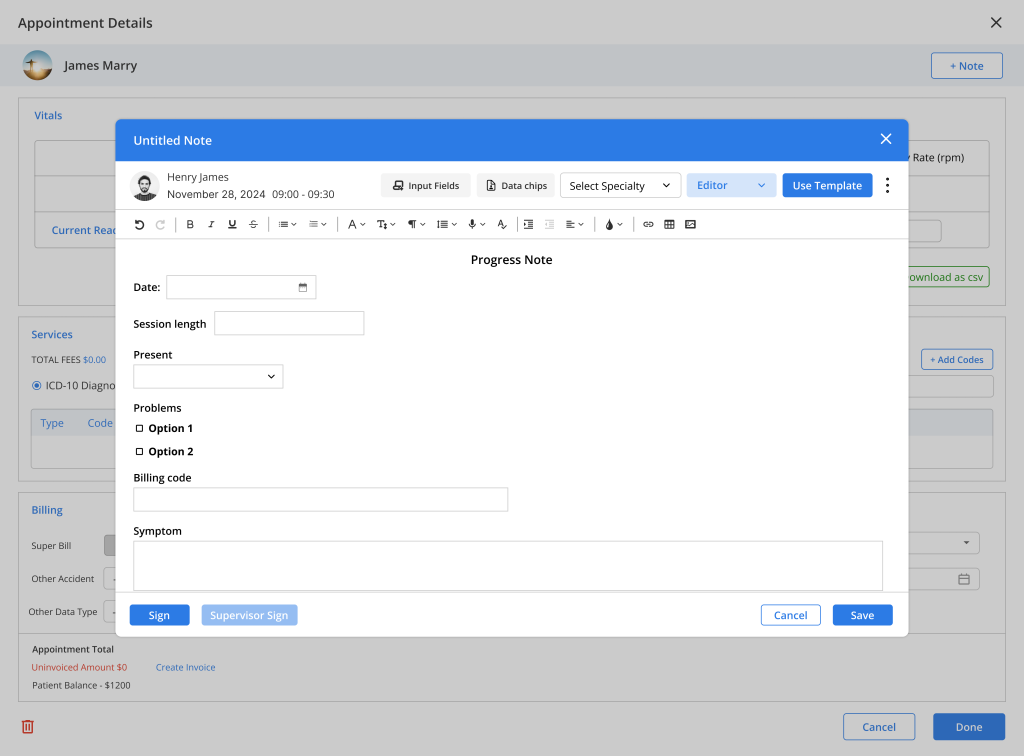
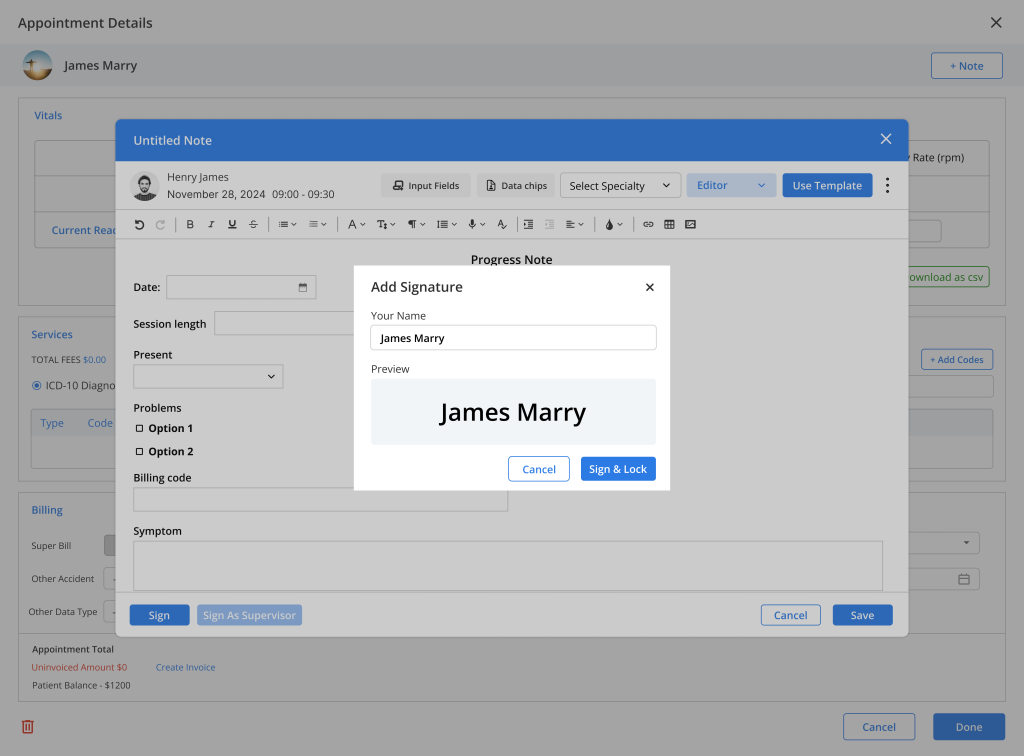
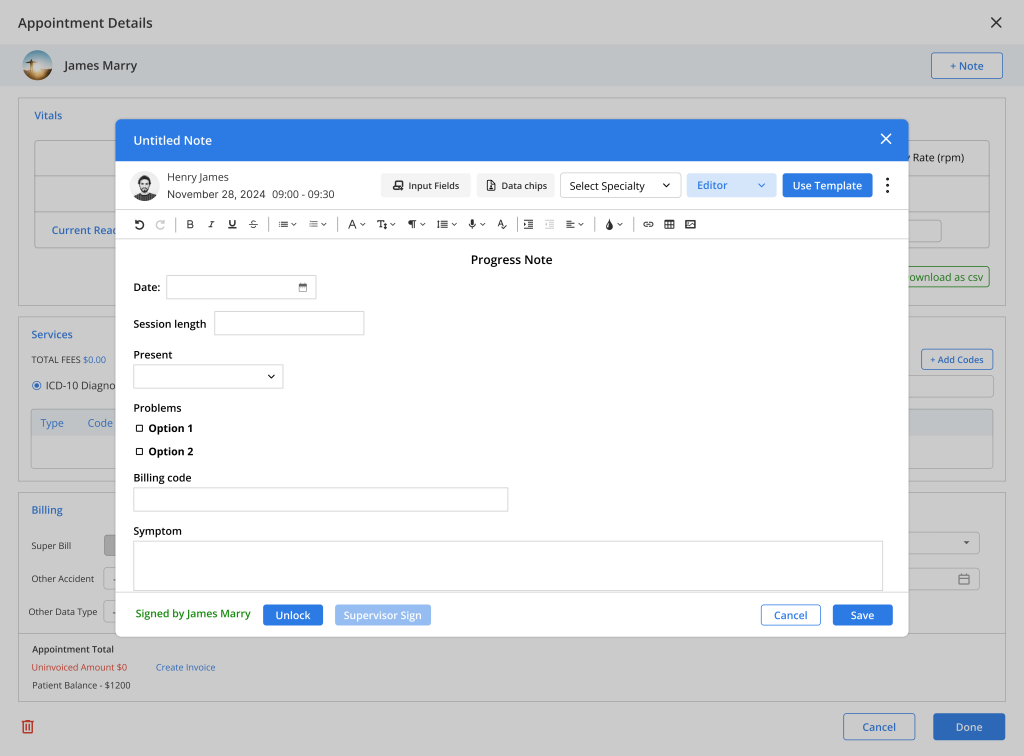
- Click on the “Sign” button to sign & lock the clinical notes so no user can edit the notes without unlocking them.
- If the “Co-sign” has been enabled, the supervisor’s sign will also be displayed beside the provider’s sign when the supervisor signs the notes.
Code Selection in Note Taking (DX / CPT / HCPCS)
Add Diagnosis and Billing Codes Directly While Creating Clinical Notes
The Code Selection feature allows providers to quickly add Diagnosis (DX), Procedure (CPT), and HCPCS codes directly inside the Note Taking screen. This helps providers complete documentation faster and improves billing accuracy without leaving the note page.
Access Code Selection in Notes
- Open the Appointment Details page, click Notes to access clinical notes or
- Go to Patient > Note Taking and click on “Add Notes” or “Edit Notes” to access clinical notes
- Or go to Patient > Patient List > Select Patient > Appointment menu and click on Add Note or View Previous Note to access clinical notes
- The note editor toolbar displays code options like:
- DX
- CPT
- HCPCS
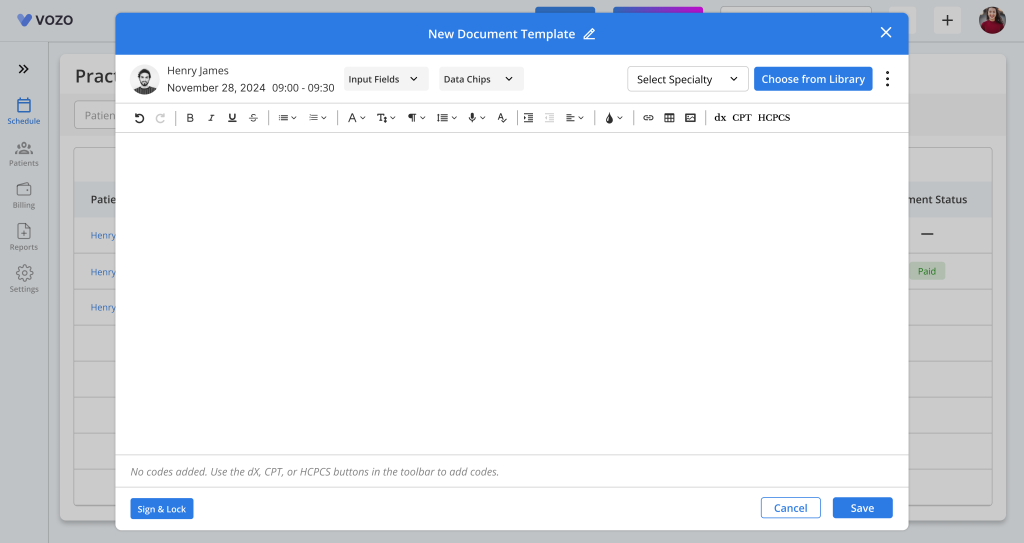
Open Code Selection Popup
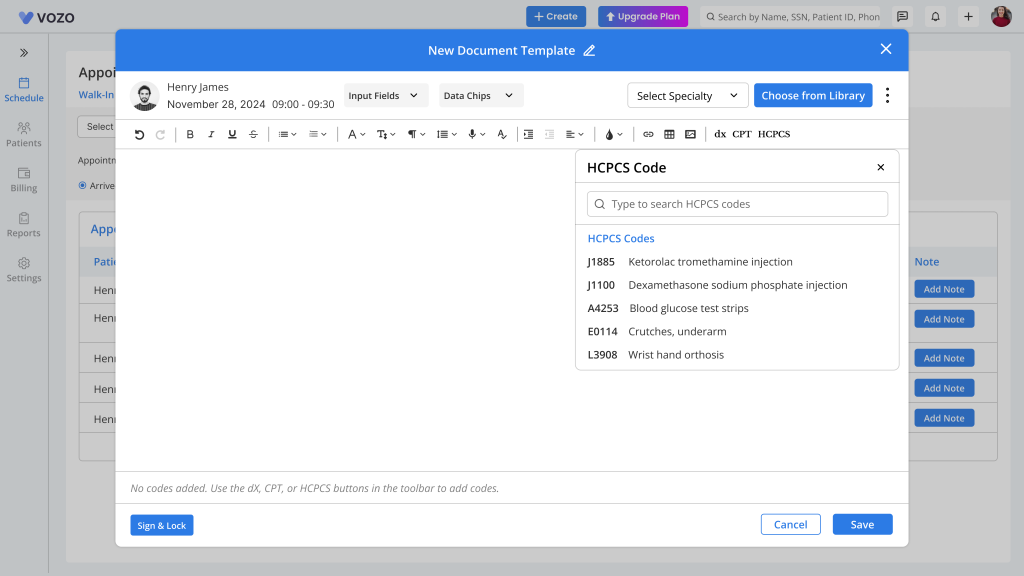
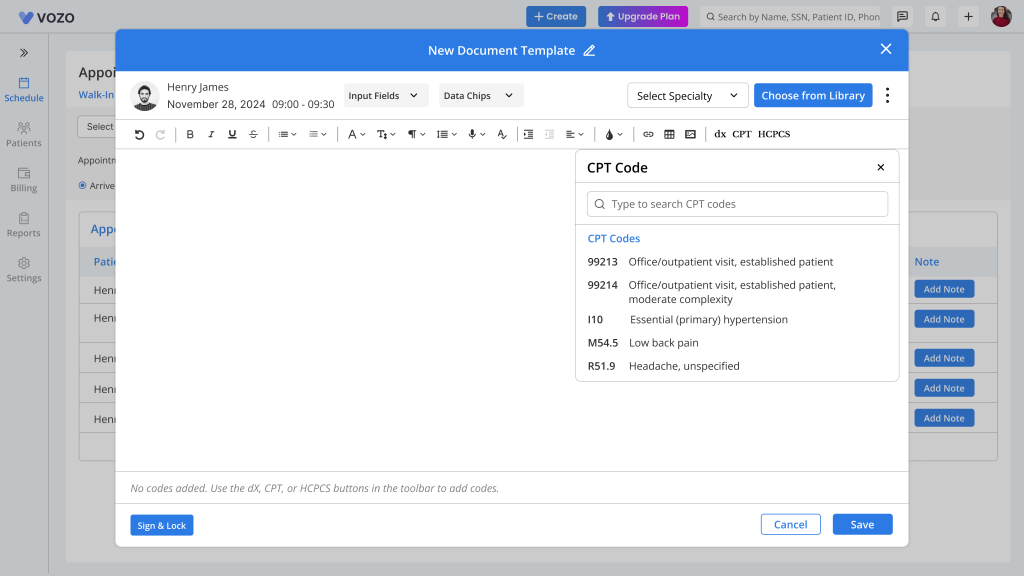
- Click DX, CPT, or HCPCS from the toolbar.
- A pop-up opens below the selected icon based on the selected code option.
- Inside the pop-up, a Search Box is displayed.
- Users can search using:
- Exact code
- Partial code
- Description keywords
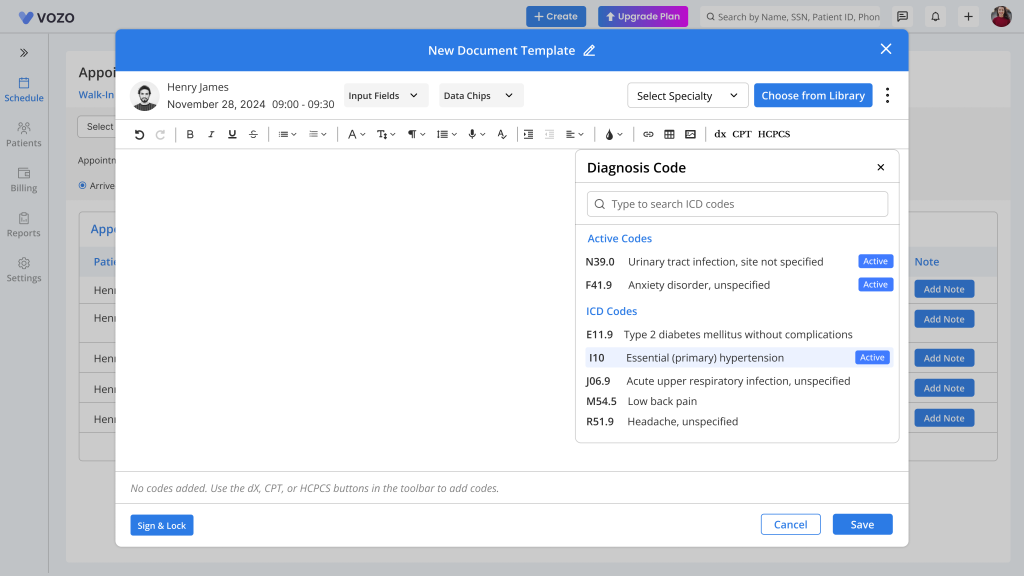
Examples
- Search by code:
- E11.9
- 99213
- A0428
- Search by keyword:
- Diabetes
- Anxiety
- Hypertension
- Results update automatically while typing.
Selected Codes in Note
- After selection all selected codes appear at the bottom of the note.
Edit Existing Notes
- When editing a saved note, previously selected codes load automatically.
- Users can:
- Add more codes
- Remove existing codes
- Search and update code selection
- After completing documentation, review the selected code and click Save to save the updated code & note.
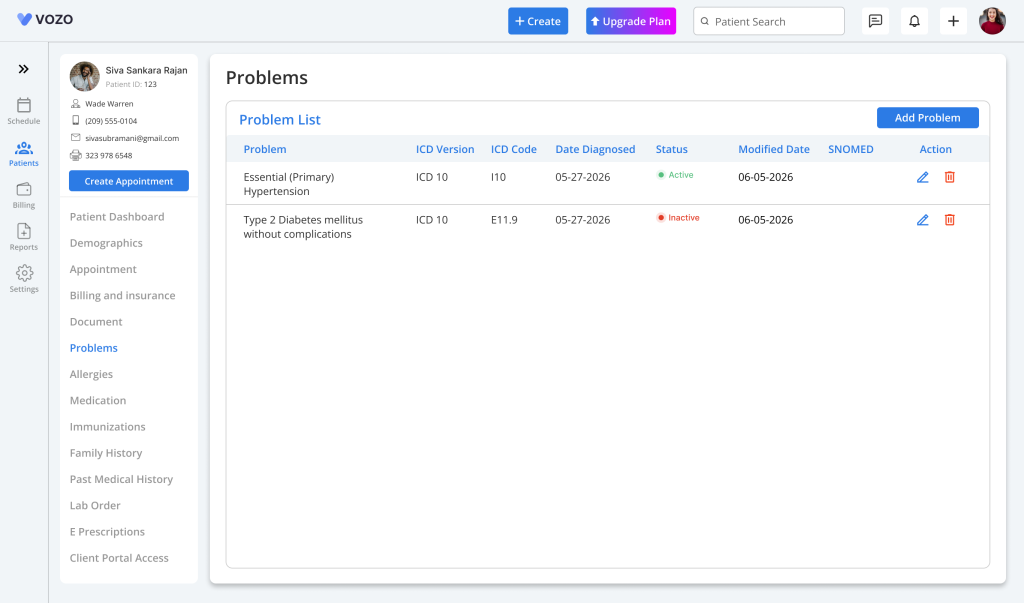
- When saving the selected ICD codes will also be saved and listed in the Problems menu.