
How can we help?
-
Sign Up Your Account
-
Get Started
-
Appointments
-
Reporting & Analytics
-
Patient Management
- Patient Dashboard
- Patient Demographics
- Adding Patient Insurance
- Prior Authorization
- Insurance Eligibility Verification
- Additional Info
- Manage Patient's Contacts
- Flags
- Manage Patient Homework
- Patient Appointments
- Managing Credit Cards
- Documents
- Problems
- Allergies
- Medications
- Immunizations
- Family History
- Past Medical History
- Client Portal Access
- Creating New Patient
- Treatment Plan
- Sending Form to Patient
- Good Faith Estimate
- Patient Care Summary
- Patient care checklist
- Outcome Measures
- Imaging
- Patient Group & Group Appointment
- Assigning Membership plan
- Lifestyle and Diet Recommendation
- Show Remaining Articles (5) Collapse Articles
-
E-prescriptions
-
Lab Orders & Results
-
Task Management
-
Messaging
-
Feedback & Support
-
Insurance Billing
-
Practice Dashboard
-
Appointments Dashboard
-
Provider Availability
-
Appointment Profile
-
Billing Profile
-
Audit Log
-
Patient Payments
-
Patient Statements
-
Patient Ledger
-
Fee Schedule
-
Manual Insurance Payment Posting (EOB)
-
Card Transactions
-
Automatic Insurance Payment Posting (ERA - Electronic Remittance Advice)
-
Patient Flag
-
Note Taking
-
Macro Buttons
-
Patient Education
-
Incoming & Outgoing Fax
-
Referral Management
-
Account Settings
-
Billing & Services
-
Scheduling Settings
-
Administration Settings
-
Clinical Notes
-
Add-Ons
-
Explore Vozo
-
Patient Portal
-
Calendar Dashboard
-
Patient List
-
Integrations
-
Account cancellation
-
Dashboard
-
Batch eligibility
-
Patient Superbill
-
Membership Plan
-
Diet Recommendation Library
Home >
Appointment
Views37
- The appointment list shows the past and upcoming appointments. The appointments created from the provider portal also will be listed here in the upcoming appointments.
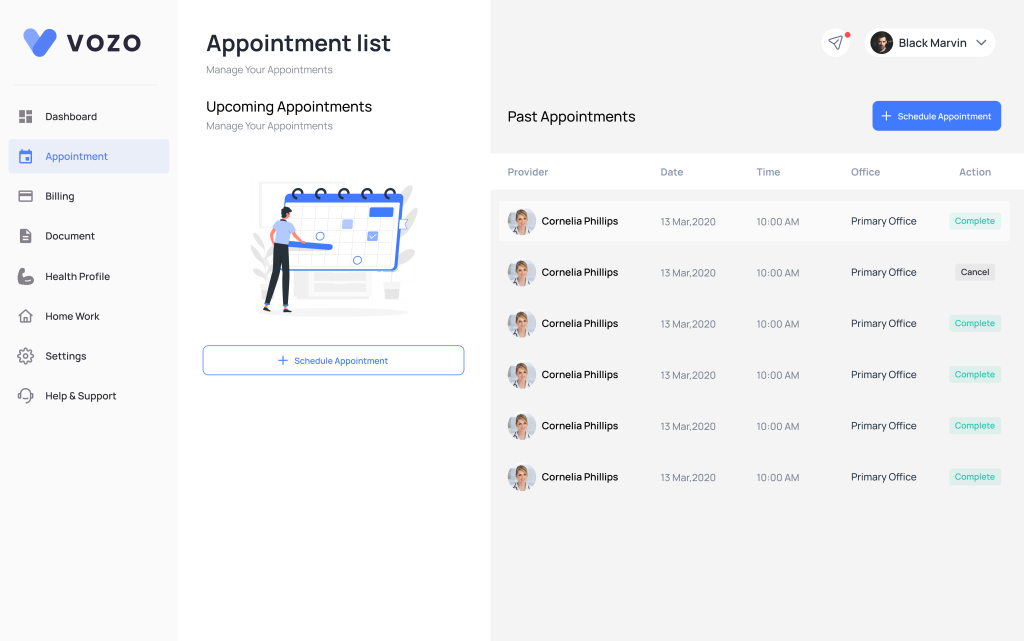
- To schedule an appointment click on the schedule appointment button. You will be getting a pop up to create a new appointment on the right side.
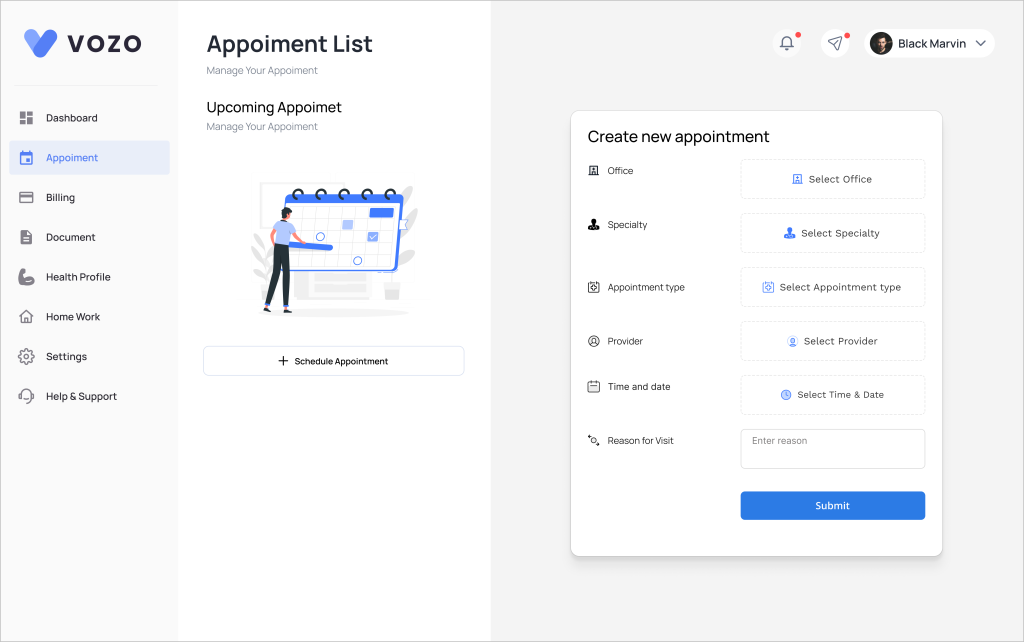
- Select Office, Specialty, Type of Appointment, Provider, Date and Time, and the reason for visit to submit an appointment successfully. Provider dropdown will be based on speciality selected. Under dates the left arrow is disabled which means past dates are disabled.
- After submitting a request will be sent to the provider portal to accept the appointment. The newly created appointment will be listed under upcoming appointments as Appointment Request.
- Once provider accept, it gets updated in patient portal as appointment confirmed
- If provider decline it the status gets updated as cancelled.
- Appointments that are created from the provider portal also get listed here in the upcoming appointments.
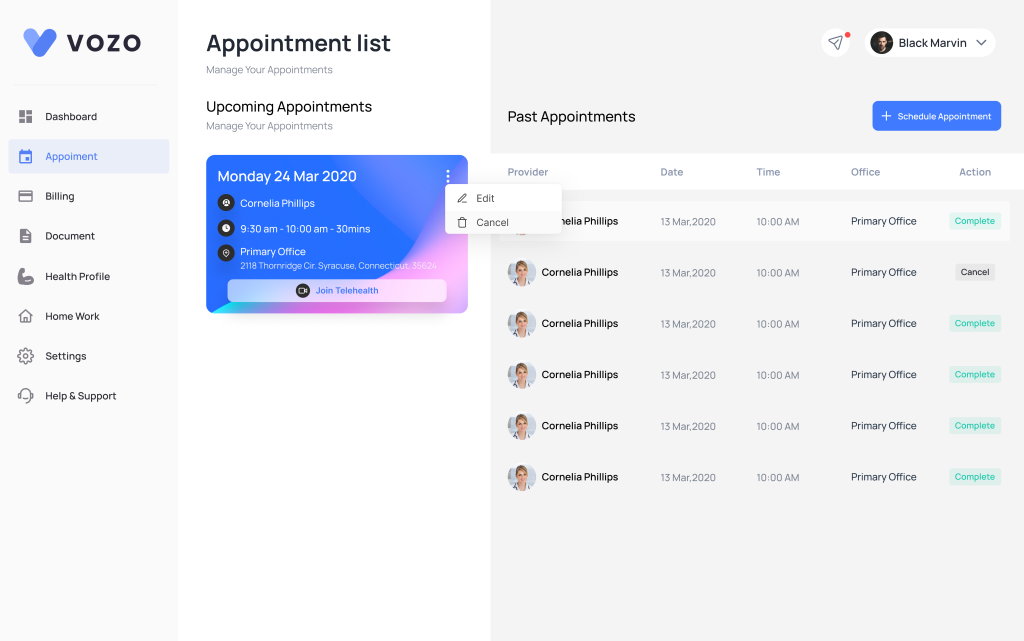
- If you want to edit the appointment in the patient portal itself then click on the three dots in upcoming appointment cards, where you can edit as well as delete that appointment.
- To be cancelled and enter the reason for cancellation. Selected appointments for that date get cancelled.
Table of Contents