How can we help?
Assigning Membership plan
Assigning a Membership Plan to a Patient
- Once a membership plan has been created, it can be assigned to an individual patient.
- Navigate to Patient → Patients and open the required patient record.
- Select the Demographics tab and open the Membership Plan section.
- Click the “Assign Plan” button to begin the assignment process.
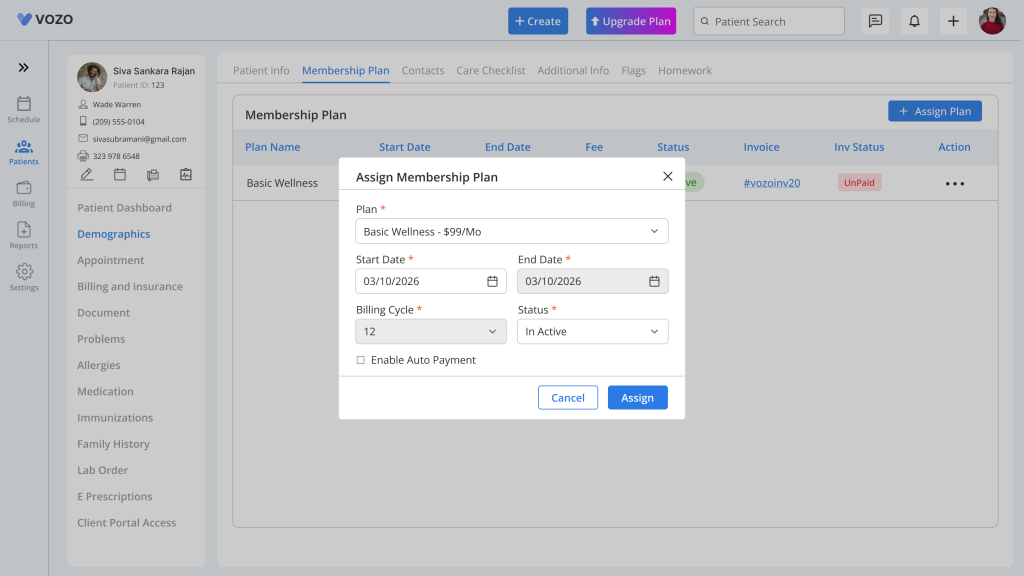
- A popup window will appear allowing the provider to:
- Select a Membership Plan
- Choose a Start Date
- Select the Plan Status
- After the Start Date is selected, the system automatically calculates and populates the End Date based on the billing cycle configured in the selected plan.
Auto Payment Configuration
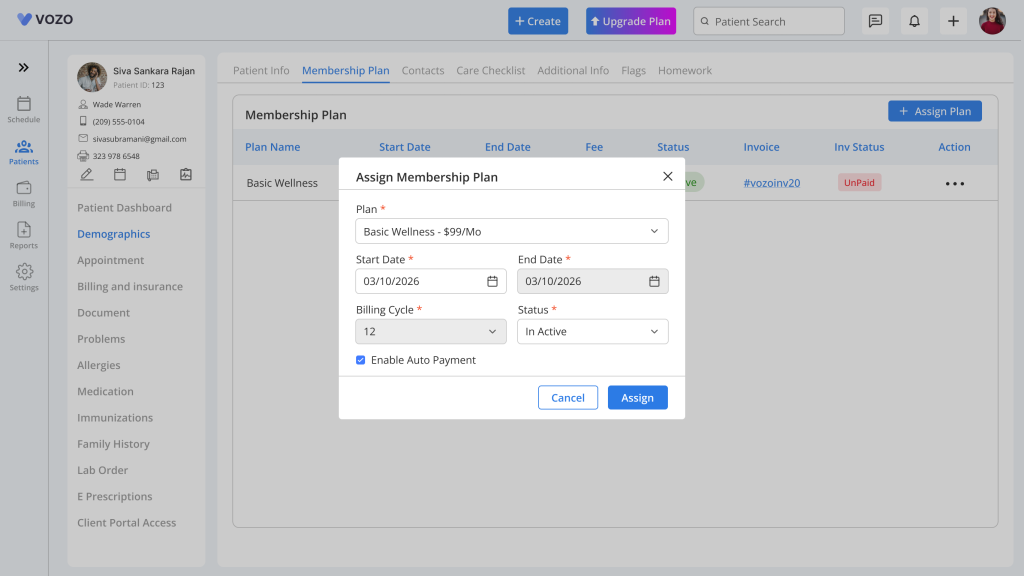
- During plan assignment, providers may enable the Auto Payment option for recurring billing.
- The Auto Payment option becomes available only when a valid payment card has already been added to the patient’s account.
- If no payment method exists, the provider must first add a payment card before enabling automatic recurring payments.
- Once enabled, membership plan charges can be processed automatically according to the configured billing schedule.
Viewing Assigned Membership Plans
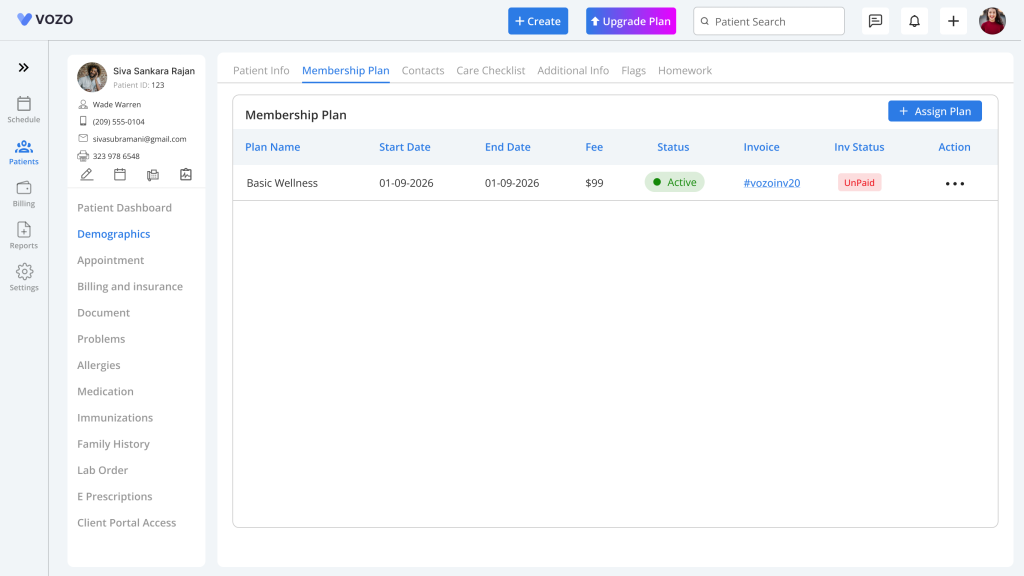
- After the membership plan is assigned successfully, the plan details become visible within the patient’s Membership Plan page.
- Providers can review:
- Assigned Plan Name
- Start Date
- End Date
- Billing Frequency
- Status
- Auto Payment Status
- This information remains available for ongoing membership management and patient subscription tracking.
Editing Membership Plans
- Providers can update membership plans whenever modifications are required.
- Plan details such as descriptions, billing configurations, and status can be edited based on organizational requirements.
- Any updates made to the plan will be reflected according to the system’s membership plan rules and billing schedule.
- Once a membership plan is assigned to a patient, the provider should not be able to modify the Plan Name, Amount, or Billing Cycle of the particular plan.
- Within the patient’s profile, for an assigned membership plan, the provider should only be allowed to update the Plan Status and enable or disable the Auto Payment option.
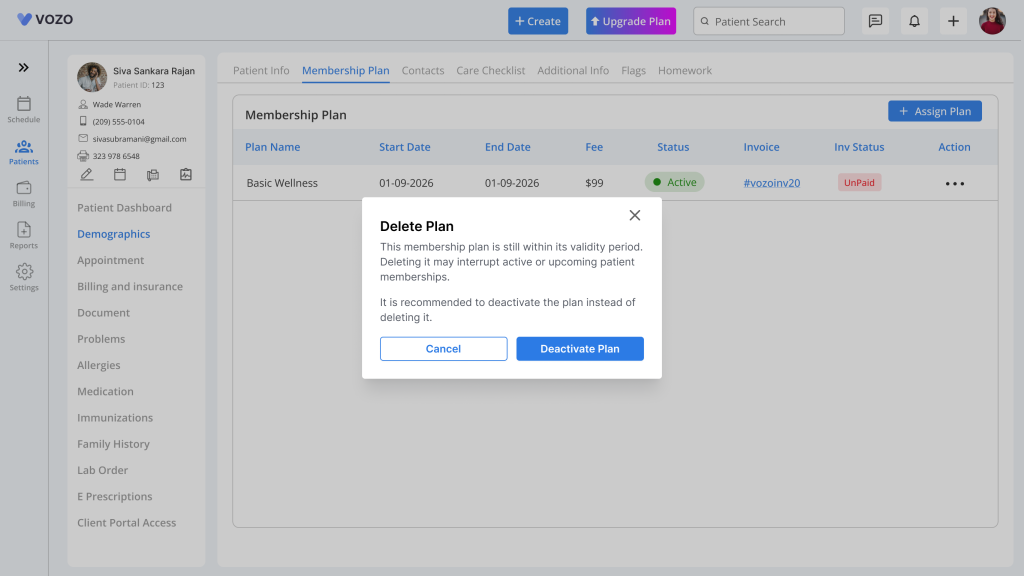
Deleting Membership Plans
- Membership plans can be removed when they are no longer required.
- Before deleting an assigned membership plan, the provider must first change the plan status to Inactive.
- Once the plan has been deactivated, the delete option becomes available.
- However, if any payment has already been processed for the assigned membership plan, deletion is not permitted.
- This restriction helps preserve billing history, payment records, and financial audit information.
Membership Plan Invoices
- Membership plan billing automatically generates invoices based on the configured billing frequency and billing cycle.
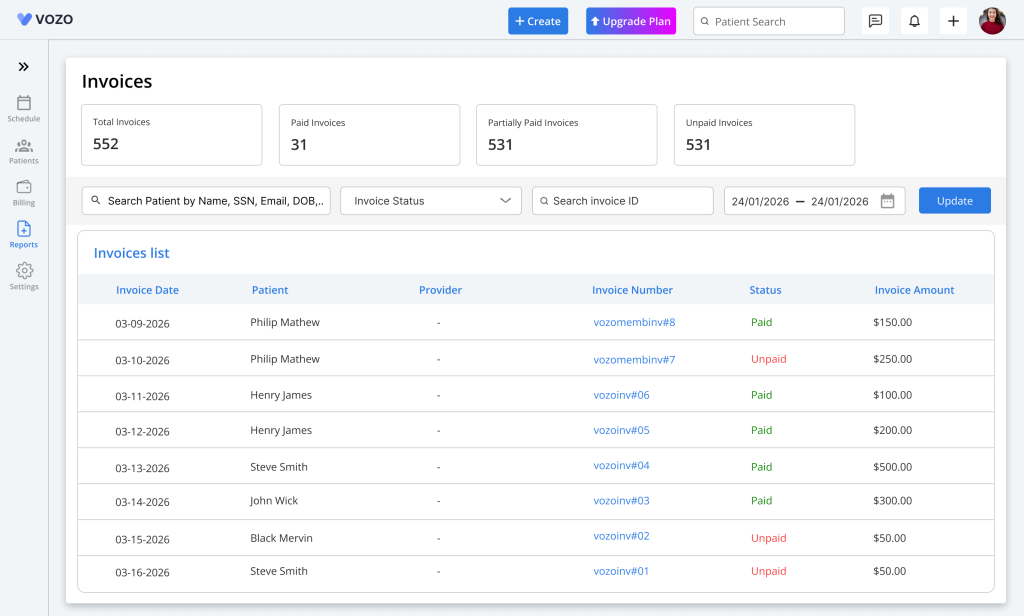
- Providers can review all membership-related invoices by navigating to:
Reports → Invoices
- Generated invoices include membership plan charges and can be managed using the standard billing and payment workflow available within the system.
- These invoices remain available for financial tracking, payment collection, and reporting purposes.