
How can we help?
Macro Buttons
The Macro feature helps users create reusable shortcuts and patient-related placeholders that can be inserted into templates, notes, and forms. Macros reduce manual typing and automatically fill patient information while using templates.
- The Macro feature is available in two places.
- Open from: Patients → Manage Macro Buttons, where we create Macros.
- Macros are also available inside: Templates → Create / Edit Template, where we use Macros
Manage Macro Buttons
- The Manage Macro Buttons page helps users:
- Create macros
- View saved macros
- Reuse macros in templates and notes
Create New Macro
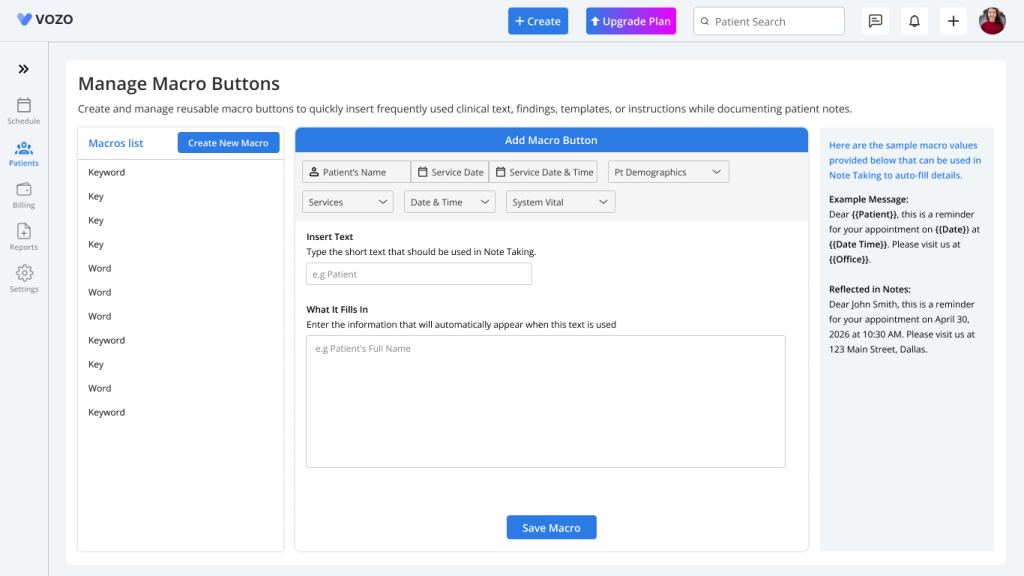
- Open Patients → Manage Macro Buttons
- Click Create New Macro
- In the macro creation area, select the following fields from the default options like:
- Patient’s Name
- Service Date
- Service Date & Time
- Patient Demographics
- Services
- Date & Time
- System Vital
- The above listed options will be displayed in the “What it Fills in” section when selected. And also provide a Placeholder text in the “Insert Text” input to map the macros with the text.
- After entering details, click Save Macro to save the Macro
- System will:
- Save the macro
- Add it to Macro List
- Display the latest macro at the top of the left panel
- The Macro List displays all saved macros.
- Users can:
- View all macros
- Identify available macros quickly
- Reuse saved macros
Templates Module Integration
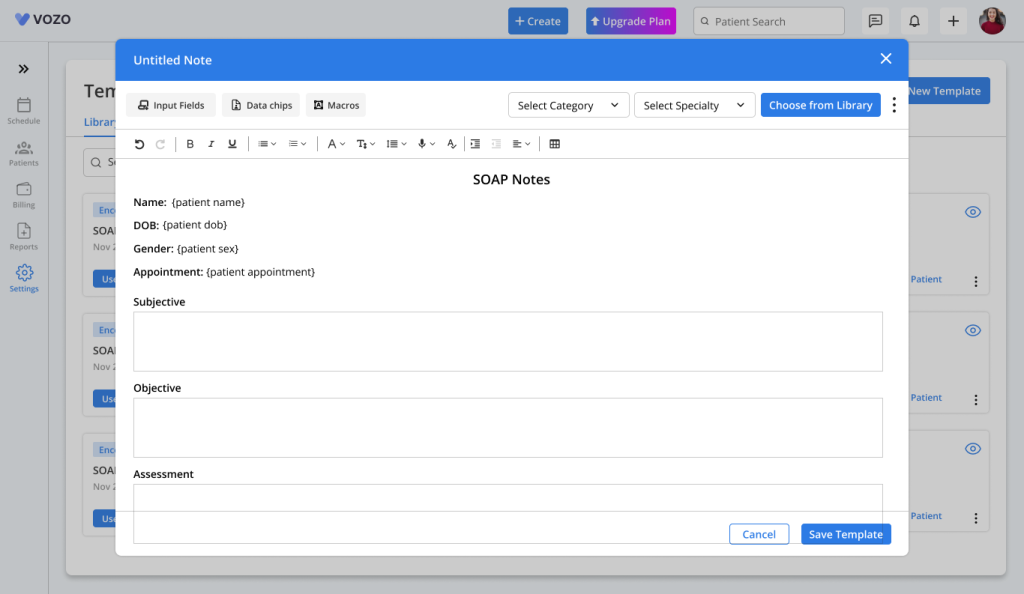
- The Macros can be used in several areas across the platform which provides same functional workflow.
- Open: Templates → Create New Template
- Encounter page → Notes
- Or Patient Dashboard → Form
- The Macros button appears near Data Chips.
- Open Template Editor, click Macros
- The system displays saved macro list which the users can select and insert it into the template editor
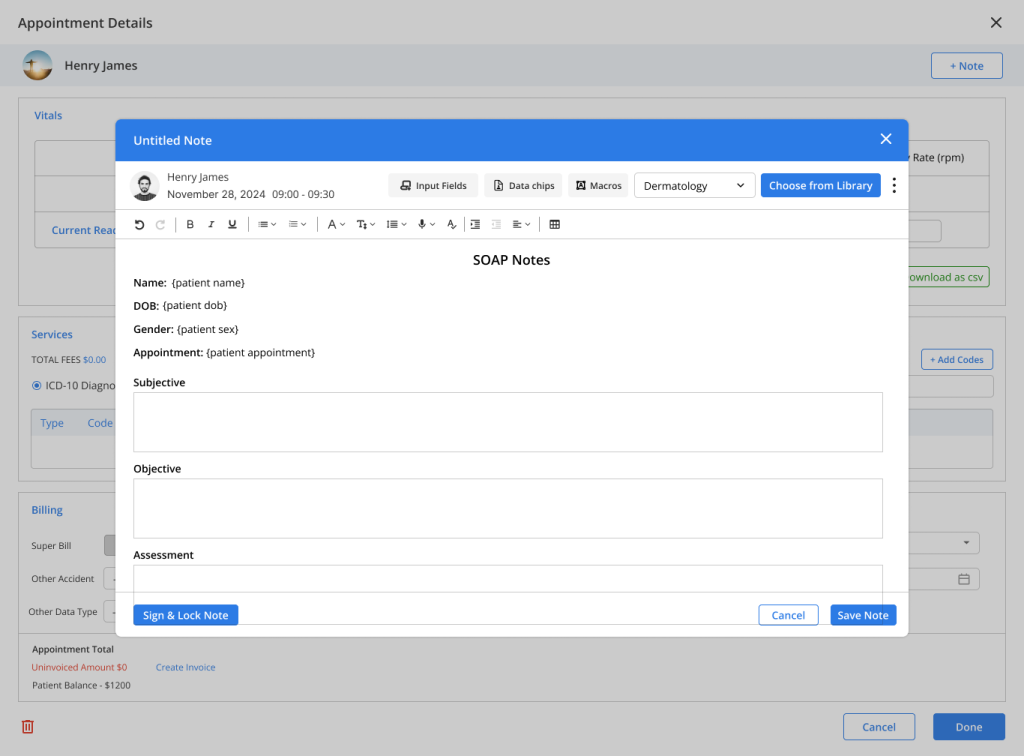
Example Macro Usage
- Inside template editor:
Name: {patient name}
DOB: {patient dob}
Gender: {patient sex}
Appointment: {patient appointment}
- These work as dynamic placeholders.
Template Editing Behavior
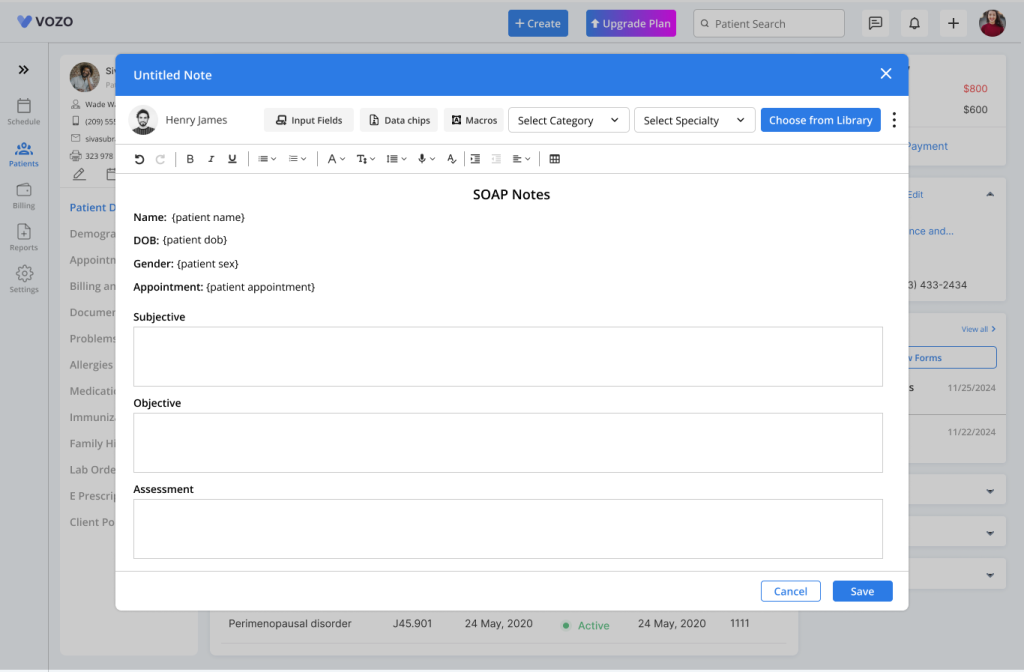
- While editing a template system shows placeholder values only.
Example:
{patient name}
{patient dob}
{patient sex}
- Actual patient details are not shown. This protects patient information during template editing.
Download Behavior
- When a template or form is downloaded system will:
- Replace all macros with patient data
- Generate final completed document
- Example:
Before download: {patient dob}
After download: 05/12/1984