
How can we help?
Patient care checklist
- The Patient Care Checklist can be accessed from two locations within the system, allowing both quick viewing and full management based on the user’s need.
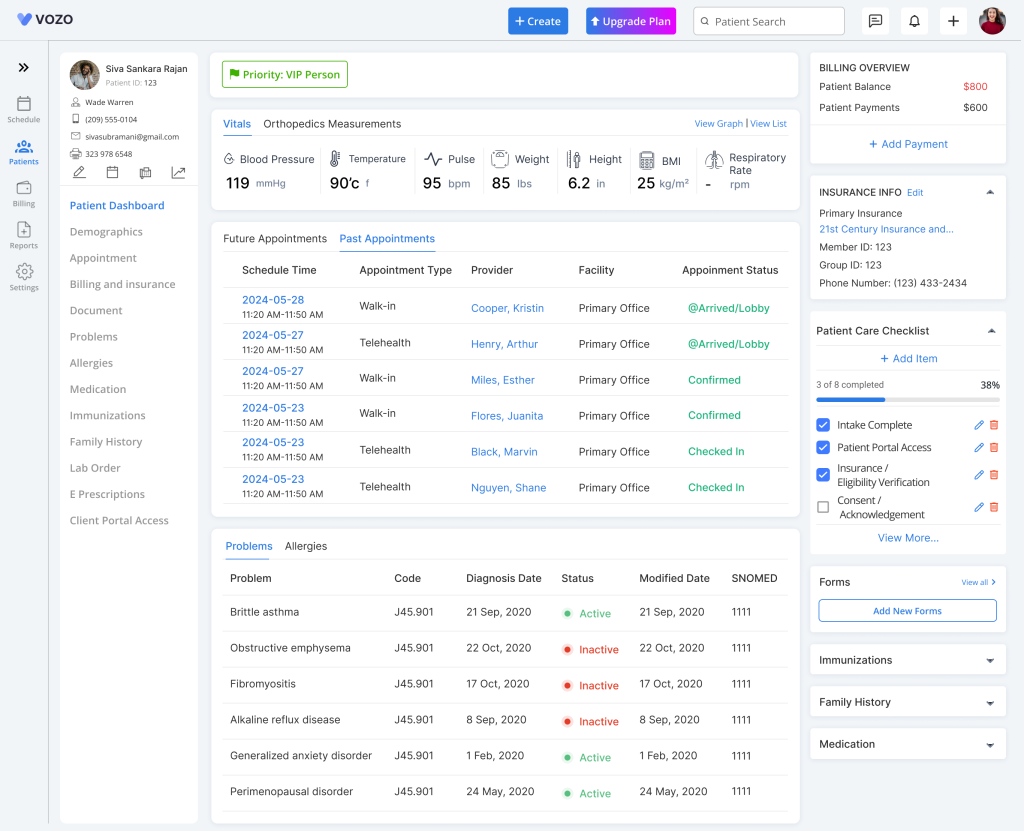
- From the Patient Dashboard, scroll below the Insurance Info section and click the Checklist dropdown to view a quick summary
- This view displays up to 4 checklist items along with a progress bar, an Add button, and a View More option for extended access.
View More Option
- Click “View More” from the dashboard checklist to access the complete checklist page.
- The system redirects you to Patient Demographics → Care Checklist Tab, where all checklist items can be viewed and managed in detail.
Add Checklist Item
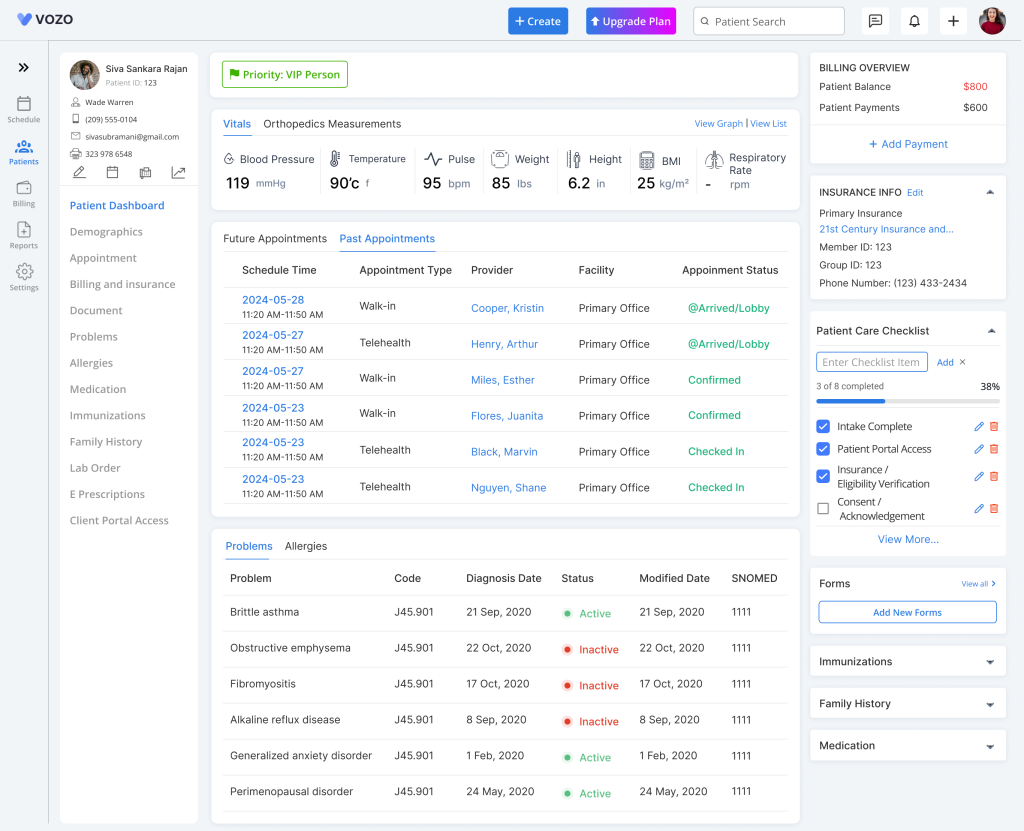
- To add a new checklist item, click the Add button from either the Dashboard or the Checklist tab and enter the checklist name.
- Once saved, the item appears immediately in the list and the Created Date is automatically recorded by the system.
Mark Checklist as Complete
- To complete a checklist item, click the checkbox next to the item. The system instantly updates the item status and reflects the change across all views.
- The completed item moves to the bottom of the list, the Checked Date is recorded automatically, and the progress bar increases accordingly.
Reopen Checklist Item
- If needed, uncheck the checkbox to reopen a completed item. The item moves back to the top of the list and the previously recorded Checked Date is removed.
- If the item is checked again later, a new Checked Date is recorded and the progress bar updates based on the latest action.
Full Checklist View
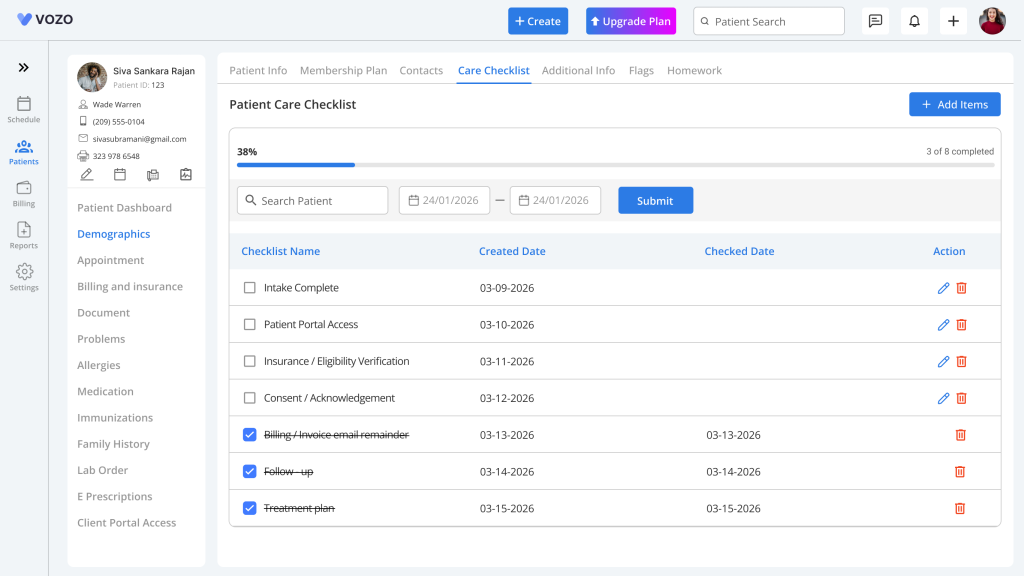
- For complete access, open the patient record and navigate to the Care Checklist tab under Patient Demographics. This page provides a detailed view of all checklist items along with their Created Date and Checked Date.
- The full checklist view allows users to manage all items efficiently, including adding, updating, and tracking completion status in one place.
Progress Bar Behavior
- The progress bar visually represents the number of completed tasks and updates automatically based on checklist activity.
- When an item is checked, the progress increases, and when it is unchecked, the progress decreases. All updates happen instantly without requiring any manual refresh.
Checklist Display Rules
- The dashboard dropdown displays only the first 4 checklist items for quick access, while the full checklist page shows all items without limitation.
- Unchecked items are always displayed at the top, and completed items appear at the bottom for better organization and visibility.
- The system allows duplicate checklist items if required for patient care tracking.
Important Notes
- The Patient Care Checklist is maintained individually for each patient, ensuring that all tasks are patient-specific.
- Any updates made to the checklist are reflected immediately across the system, maintaining real-time synchronization.
- All dates, including Created Date and Checked Date, are automatically recorded based on the system date, and the progress bar always reflects the latest status.