
How can we help?
Good Faith Estimate
- The Good Faith Estimate (GFE) feature helps providers generate estimated service cost documents for uninsured or self-pay patients. The estimate includes expected charges, provider details, itemized services, and required disclaimers before treatment is provided.
- The generated GFE document can be shared with patients through the Patient Portal or email and stored securely within patient records.
Identify Eligible Patient
- Begin by opening the required Patient Profile and verifying whether the patient is marked as:
- Uninsured
- Self-pay
- If the patient qualifies under either category, proceed with creating the Good Faith Estimate.
Assign Provider & Service Codes
- Open the Patient Chart and select the appropriate provider responsible for the visit.
- Add the required:
- Diagnosis Codes (ICD-10)
- Service Codes (CPT / HCPCS)
- These codes are used to build the estimate and calculate the projected patient cost.
Create Good Faith Estimate
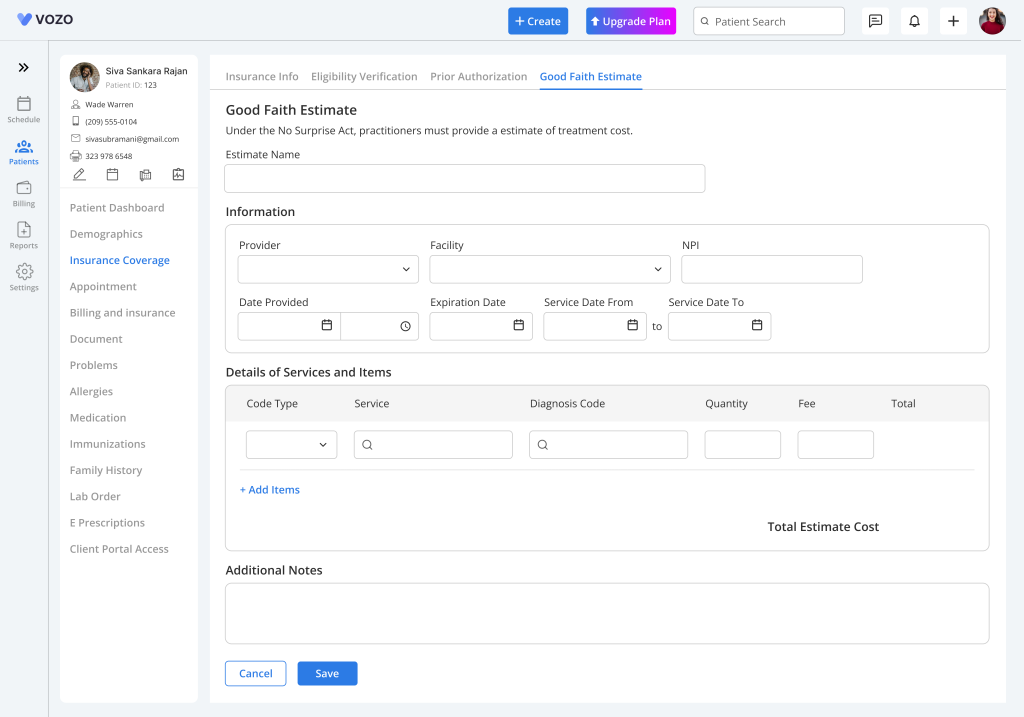
- Navigate back to the Patient Profile and click on the Insurance Coverage tab, then open the Good Faith Estimation tab.
- Click the “+ Create Estimate” button to begin creating the Good Faith Estimate document.
- Enter the required basic details including:
- Title
- Date
- Service Date
- The Expiration Date is automatically set to 12 months from the created date.
Provider Details
- Select the required provider. If a primary provider is assigned to the patient, the system automatically selects that provider by default.
- Related provider information such as:
- NPI Number
- Facility Details – are automatically populated by the system.
Add Services & Costs
- In the Services Table, add the required service details for the estimate.
- For each service:
- Select CPT / HCPCS Code
- Service Description auto-populates
- Enter Quantity
- Fee Schedule auto-populates and remains editable
- Select Diagnosis Code
- The system automatically calculates the Total Cost using:
- Quantity × Fee Amount
Additional Actions
- Click “+ Add Service” to include additional services in the estimate.
- Use the Delete icon to remove unwanted service rows.
- Additional comments or instructions can be entered in the Additional Notes section.
Save & Generate Document
- After entering all required information, click “Save” to generate the Good Faith Estimate document.
- The system automatically creates the GFE document including:
- Provider Information
- Itemized Service List
- Estimated Total Cost
- Required Legal Disclaimers
- The document is generated in PDF format for sharing and storage.
Send Estimate to Patient
- After generating the estimate, click “Save” to share the document.
- Available delivery methods include:
- Patient Portal
- Email (optional)
- Patients can:
- View the estimate
- Review service details
- Sign the document electronically using the signature field provided
View Saved Documents
- All generated Good Faith Estimate documents are stored within the patient record.
- Navigate to:
- Patient Profile
- Documents Tab
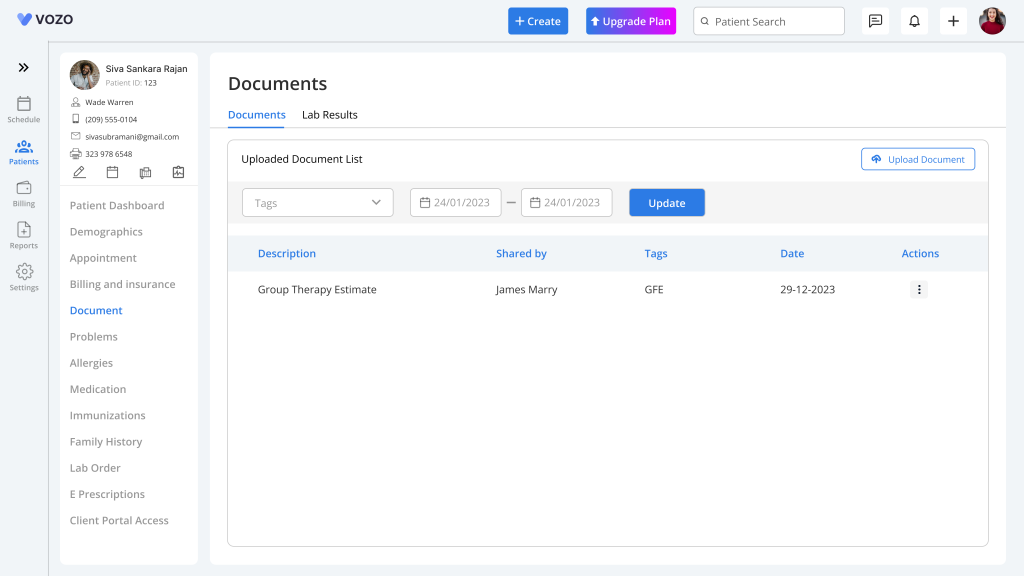
- Providers can manage saved estimates using the available actions:
- View
- Download PDF
- Delete
- Click the three-dot menu to access document actions.
Patient Document Storage
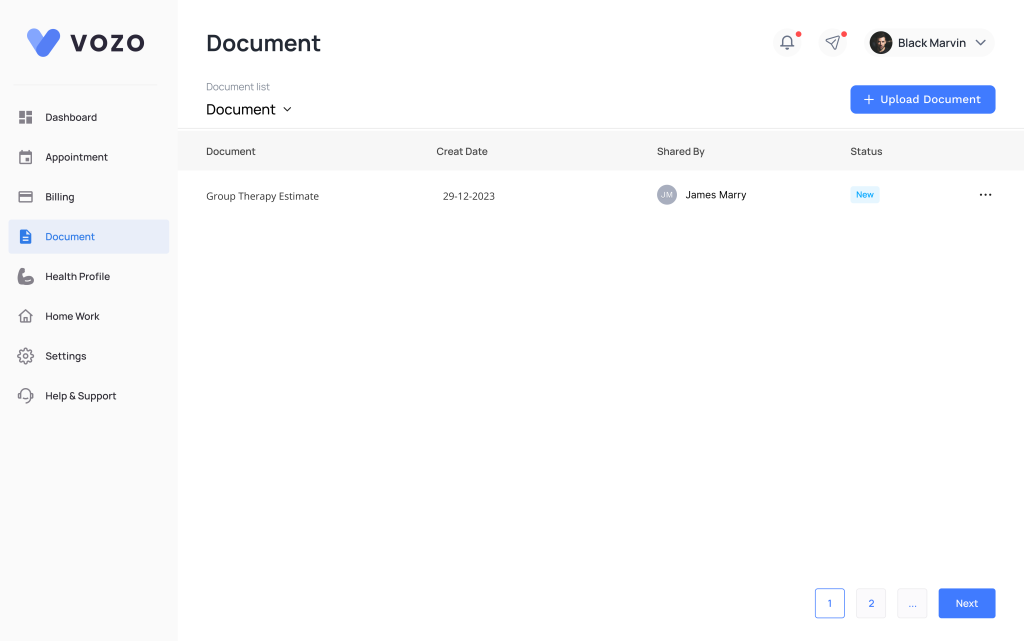
- Once shared, the Good Faith Estimate document is automatically saved in the patient’s document records as a PDF file.
- If the estimate is re-sent or regenerated, the latest version replaces the previously shared document.
Provider Review
- Providers can verify completed estimates and patient signatures from the shared document section.
- Open the shared document and review:
- Patient Signature
- Estimate Details
- Service Information