How can we help?
Superbill
- The Superbill is a billing document that summarizes patient encounter information, including diagnosis codes, procedure codes, services provided, and charge details. It can be generated after completing an encounter and shared directly with the patient.
- The system automatically prepares the Superbill using encounter and billing information already available within the patient record.
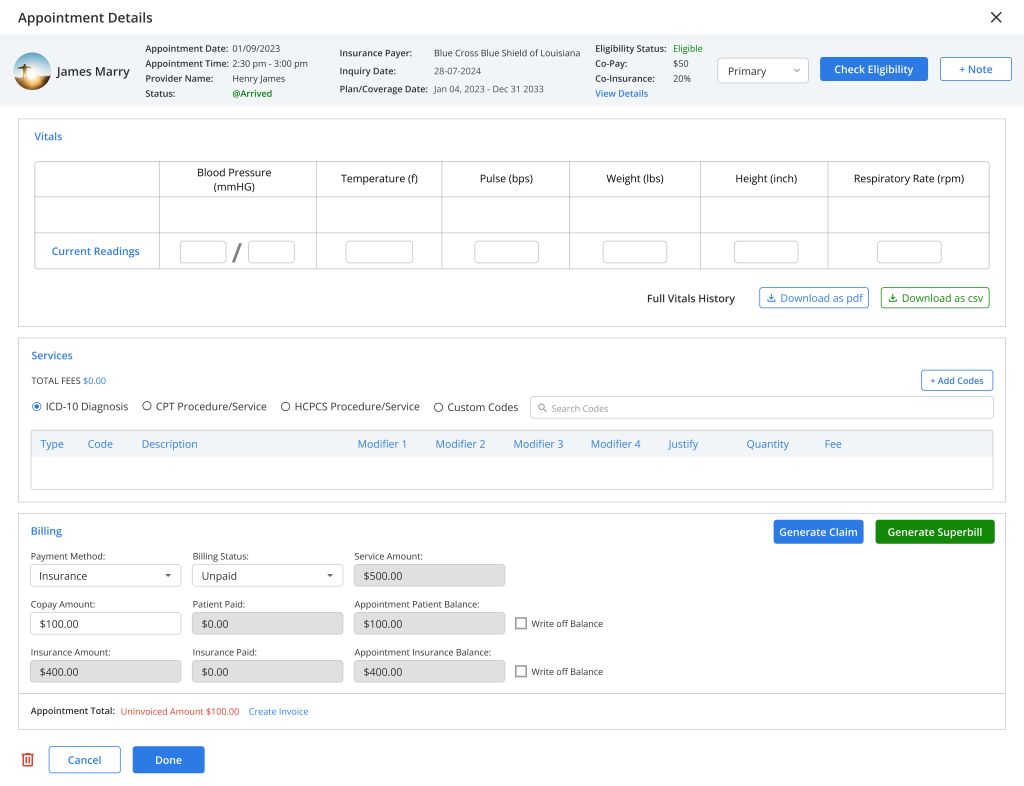
Generate a Superbill
- To generate a Superbill, open the required Patient Encounter and click on the “Generate Superbill” option.
- Once selected, the system automatically creates the Superbill using the encounter details and generates the document in PDF format.
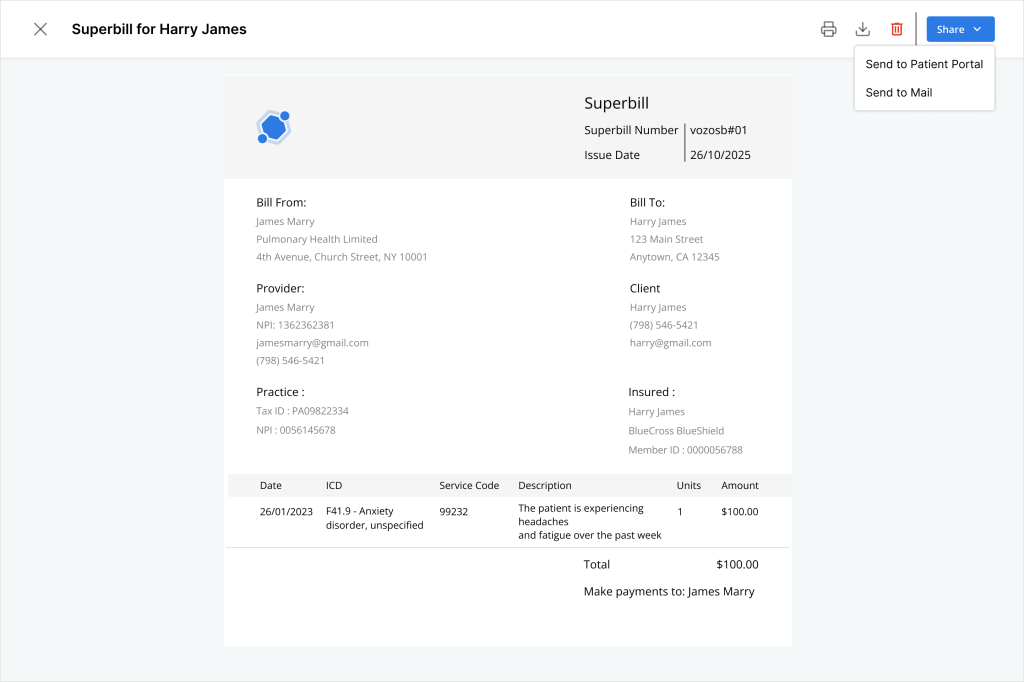
- The Superbill is automatically populated with patient, provider, encounter, diagnosis, and billing details to ensure accurate documentation.
Patient Details
- The Superbill includes patient-related information such as:
- Patient Name
- Mobile Number
- Email ID
Provider Details
- Provider information displayed in the Superbill includes:
- Provider Name
- NPI Number
- Email ID
- Mobile Number
Encounter Details
- Encounter information automatically included:
- Encounter Date
- Facility Address
- Place of Service (POS)
Service Details
- Service and procedure information includes:
- CPT Code
- Description
- Quantity
- Unit Fee
- Total Fee
Diagnosis Details
- Diagnosis and coding information includes:
- ICD-10 Codes
- CPT / HCPCS Codes
Charges Summary
- Billing summary details include:
- Total Charges
- Discounts
- Billed Amount
Available Actions on Superbill
- After generating the Superbill, multiple actions are available for managing and sharing the document.
- Available actions include:
- Download → Save the Superbill as PDF
- Print → Print the Superbill document
- Delete → Remove the Superbill
- Share → Send the Superbill to the patient
Share a Superbill
- To share the Superbill, click the “Share” option available on the generated document.
- The system provides the following sharing methods:
- Patient Portal → Makes the Superbill available in the patient portal
- Email → Sends the Superbill directly to the patient email address
Patient Portal – Viewing Superbill
- Patients can access shared Superbills directly from the Patient Portal.
- Inside the Patient Portal, navigate to:
- Billing Module
- Superbill Tab
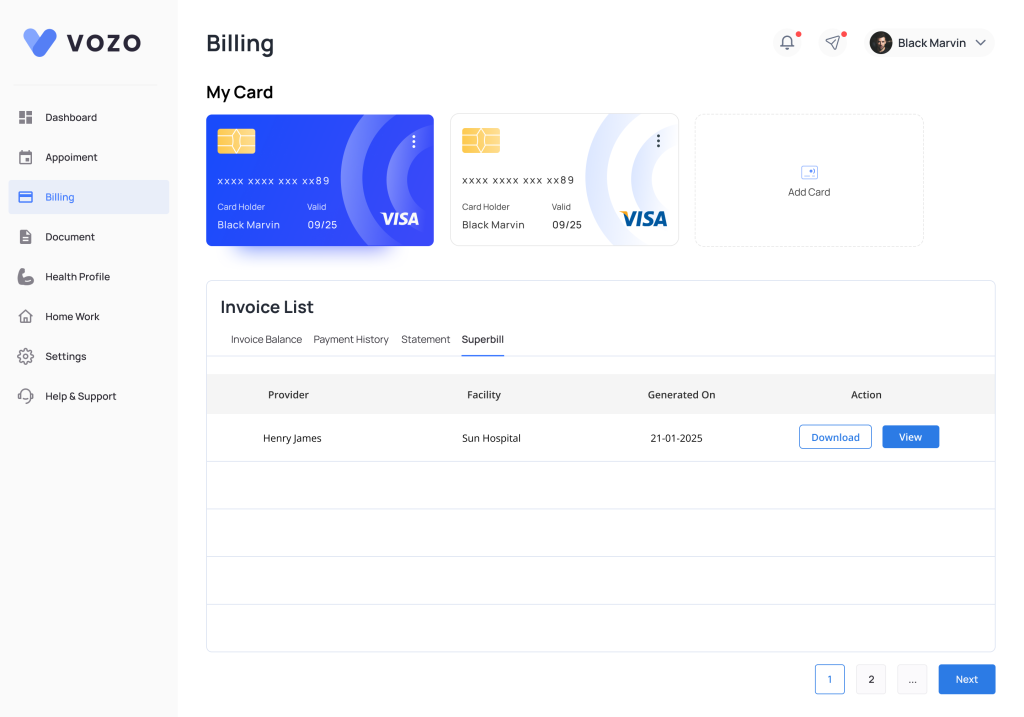
- The patient can view the list of shared Superbills along with details such as:
- Provider
- Facility
- Generated Date
- Under the Actions section, patients can:
- Click “View” to open the Superbill
- Click “Download” to save the PDF file
Provider Settings for Superbill
Enable Email Billing Notification
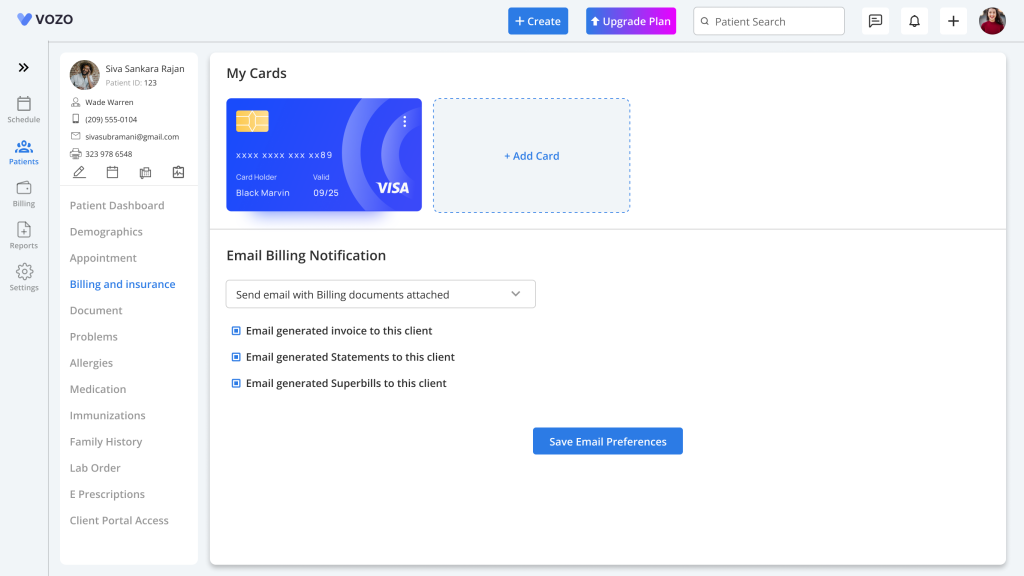
- Providers can enable automatic Superbill email notifications from the patient profile settings.
- Navigate to:
- Patient Profile
- Bill and Insurance section
- Locate the option:
- “Email Generated Super Bills to Client”
- Enable the checkbox to allow automatic Superbill email delivery to patients.
Customize Superbill Format
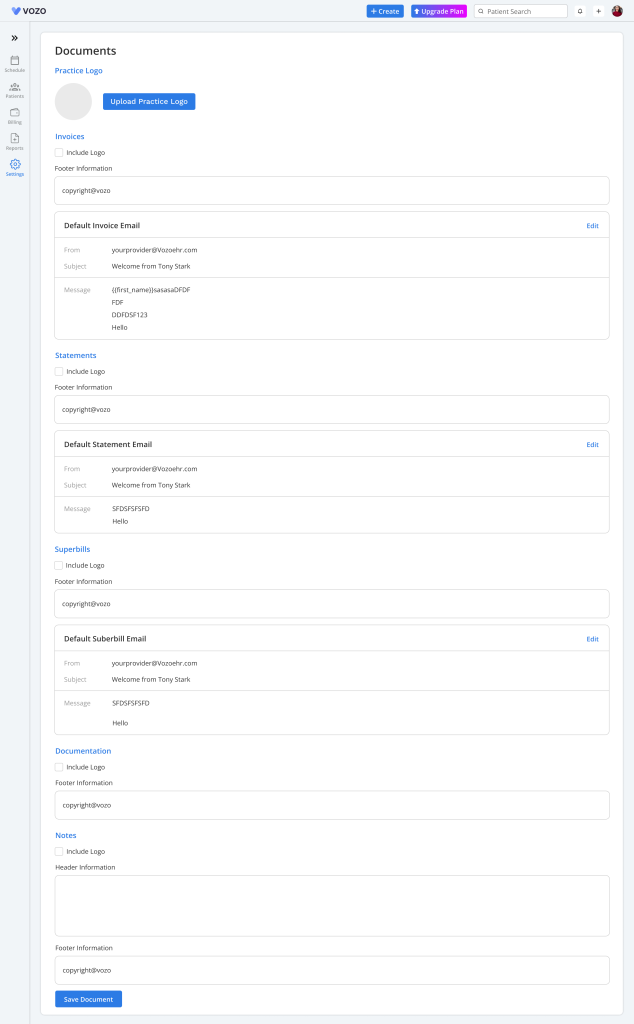
- The Superbill layout and branding can be customized from system settings.
- Navigate to:
- Settings
- Document Module
- Providers can configure:
- Superbill Logo
- Footer Information
- Email Body Content