
How can we help?
-
Sign Up Your Account
-
Get Started
-
Appointments
-
Reporting & Analytics
-
Patient Management
- Patient Dashboard
- Patient Demographics
- Adding Patient Insurance
- Prior Authorization
- Insurance Eligibility Verification
- Additional Info
- Manage Patient's Contacts
- Flags
- Manage Patient Homework
- Patient Appointments
- Managing Credit Cards
- Documents
- Problems
- Allergies
- Medications
- Immunizations
- Family History
- Past Medical History
- Client Portal Access
- Creating New Patient
- Treatment Plan
- Sending Form to Patient
- Good Faith Estimate
- Patient Care Summary
- Patient care checklist
- Outcome Measures
- Imaging
- Patient Group & Group Appointment
- Assigning Membership plan
- Lifestyle and Diet Recommendation
- Show Remaining Articles (5) Collapse Articles
-
E-prescriptions
-
Lab Orders & Results
-
Task Management
-
Messaging
-
Feedback & Support
-
Insurance Billing
-
Practice Dashboard
-
Appointments Dashboard
-
Provider Availability
-
Appointment Profile
-
Billing Profile
-
Audit Log
-
Patient Payments
-
Patient Statements
-
Patient Ledger
-
Fee Schedule
-
Manual Insurance Payment Posting (EOB)
-
Card Transactions
-
Automatic Insurance Payment Posting (ERA - Electronic Remittance Advice)
-
Patient Flag
-
Note Taking
-
Macro Buttons
-
Patient Education
-
Incoming & Outgoing Fax
-
Referral Management
-
Account Settings
-
Billing & Services
-
Scheduling Settings
-
Administration Settings
-
Clinical Notes
-
Add-Ons
-
Explore Vozo
-
Patient Portal
-
Calendar Dashboard
-
Patient List
-
Integrations
-
Account cancellation
-
Dashboard
-
Batch eligibility
-
Patient Superbill
-
Membership Plan
-
Diet Recommendation Library
Home >
Patient Membership plan
Views19
When a membership plan is created by the provider and assigned to a patient, the assigned plan becomes available in the Patient Portal.
Accessing Membership Plans
- Log in to the Patient Portal.
- Click on the Membership Plan menu.
- The Membership Plan page displays all membership plans assigned to the patient.
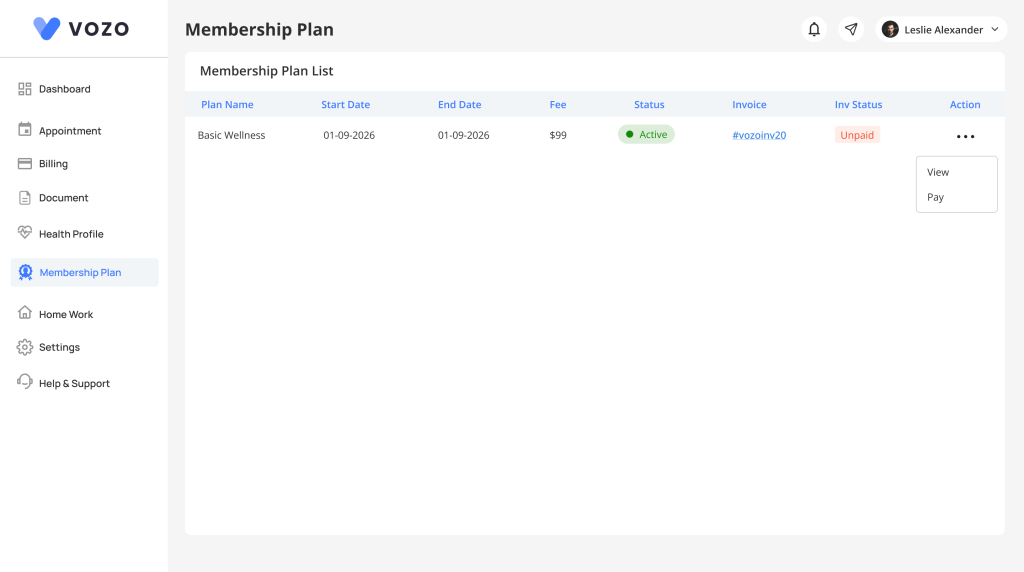
Membership Plan List
The patient can view the membership plans in a list with the following columns:
- Plan Name – Displays the name of the membership plan.
- Start Date – Displays the date on which the membership plan starts.
- End Date – Displays the date on which the membership plan ends.
- Fee – Displays the membership plan fee.
- Status – Displays the current status of the membership plan.
- Invoice – Displays the invoice associated with the membership plan.
- Inv Status – Displays the current invoice status.
- Action – Displays the available actions for the membership plan.
Available Actions
The following actions are available in the Action column:
View
- Click View for the required membership plan.
- The patient can view the details of the selected membership plan.
Pay
- Click Pay for the required membership plan.
- The payment screen opens.
- Review the payment details.
- Complete the payment process.
- Once the payment is completed, the payment status is updated accordingly.
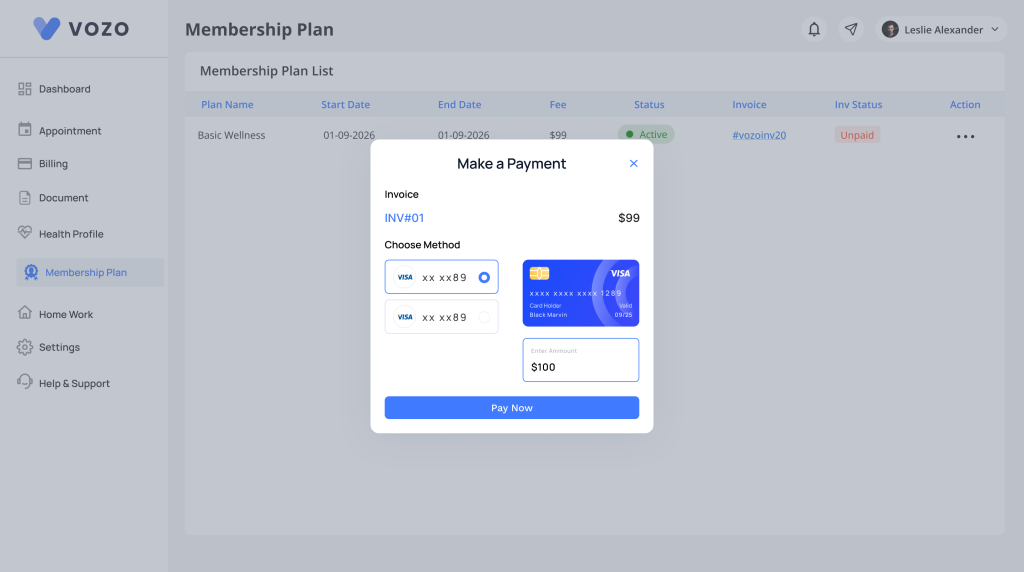
Membership Plan Invoices
The invoice associated with the membership plan is also available in the Billing section.
- Navigate to the Billing menu.
- Open the Pending Invoices tab.
- The patient can view the invoice listed under Pending Invoices.
Invoice Actions
From the Pending Invoices tab, the patient can:
- View the invoice.
- Make the payment for the invoice.
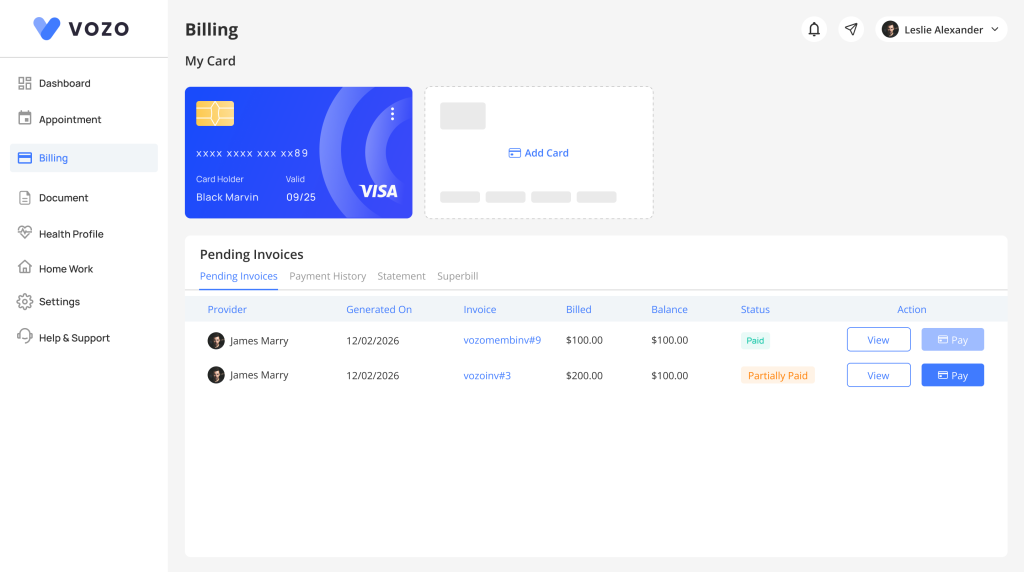
Table of Contents